MCP and EFIS By SimWorld - Review

Mode Control Panel (MCP) by SimWorld.  The image looks impressive and the looks do not deceive as this MCP has many advantages over other panels. (promotional photograph © SimWorld

This article will review and evaluate the Mode Control Panel (MCP) and Electronic Flight Instrument System (EFIS) produced by SimWorld in Poland.  It will also briefly examine the use of the CANBUS controller system (SimBox). 

The MCP will be discussed first followed by the EFIS and CANBUS system.  Where some areas overlap they will be discussed together.  I use the word panel to denote either the MCP or EFIS.  Also, OEM is an acronym for Original Equipment Manufacturer (aka real aircraft part).  

This review is not endorsed by SimWorld and is entirely my view based on first-hand experience using the MCP and EFIS.  

Background

The mainstay for several years has been the MCP and EFIS produced by CP Flight in Italy.  For the most part, these panels have delivered consistent and reliable performance, despite their rather dated design and engineering.  

However, there are several distinct differences in aesthetics and functionality between the CP Flight units and OEM counterparts.  Furthermore, many CP Flight panels had connection problems caused by the nature of how the MCP was connected to the server computer (using a virtual communication port).  

Reason for Updating MCP and EFIS

Until updating to the SimWorld MCP and EFIS, I had used the panels manufactured by CP Flight (2015 Pro USB interface model), but technology is not idle.  The use of high-end CNC machines and electronics has enabled many parts to me made, that are in many respects indiscernible from the real item.

Initially, I attempted to find OEM panels.  Although the older non-Collins style MCP could be found, it wasn’t possible to find the newer Collins unit at an affordable price.   

SimWorld provides, at the time of writing, the closest resemblance to the OEM panels.  Furthermore, the use of the CANBUS enables trouble-free connection.

Pre-Sale

The MCP and EFIS are not inexpensive; add to this Government import charges and UPS freight and you have spent a considerable sum of money.   With an increased price comes the expectation of higher quality, reliability, robustness, and attention to detail; let’s examine how SimWorld shapes up to this maxim.

The SimWorld website provides considerable information, including photographs and a video demonstrating the MCP and EFIS.  Although imagery can save a thousand words, questions usually need to be asked.   Filip and Piotr spent considerable time answering my specific queries and e-mails were replied to in a timely manner.   Their customer focus has been top shelf in every respect.

Aesthetics, Manufacture and Detail - MCP

The Mode Control Panel (MCP) and Electronic Flight Instrument System (EFIS) are the main avionics panels used in a simulator, and most enthusiasts strive to replicate the appearance and functionality of these panels as closely as possible to the those in the real aircraft.  

Quick List – Main Advantages (SimWorld MCP):

(i)         1:1 in comparison to the OEM MCP;

(ii)         Correct Boeing-grey colour;

(iii)        Screws located in the correct location on the front panel;

(iv)        Flight Director thumb stops;

(v)         Use of externally protected printed circuit boards (PCBs);

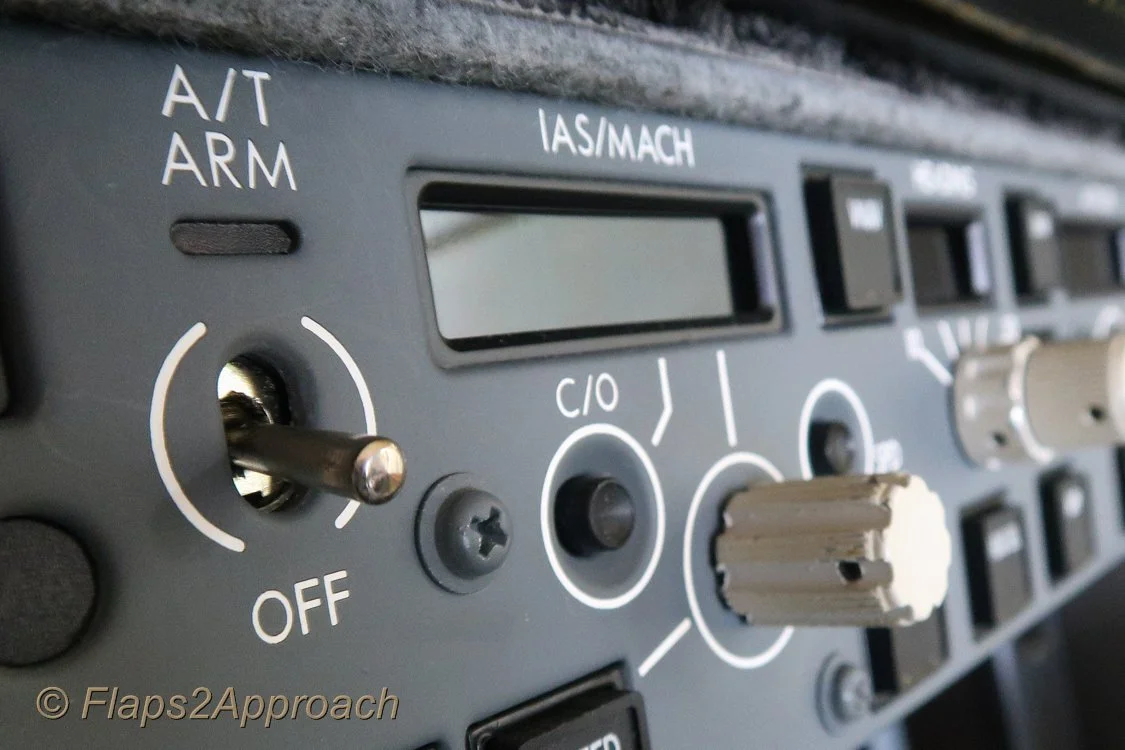
(vi)        Motorised autothrottle arming switch with automatic release to off;

(vii)       Ambient sensor (2017 MCP model, not functional);

(viii)      Does not use seven-segmented displays;

(ix)       Ability to accurately display +- and other specialist fonts;

(x)        Push to engage annunciators are backlit in green (when depressed) and are separate to the colour of the backlighting;

(xi)       Integrated backlighting uses a built-in PCB for reliable dimming control;

(xii)      Correct styled knobs made from painted aluminum;

(xiii)     Correct smoky-coloured display windows positioned in frames identical to the OEM MCP;

(xiv)     Functionality that replicates the OEM MCP (depends on avionics suite used); and,

(xv)      Use of commercial grade rotary encoders.

External casing removed showing multiple Printed Circuit Boards

Internal Components

The components for the MCP and EFIS panels are for the most part machine-made; however, the components are assembled by hand on a market-demand basis.   To ensure production repeatability, SimWorld use a number of printed circuit boards (PCBs) sandwiched together to provide core functionality.

A PCB contains numerous ‘tracks and pads’, that are used for input and output devices, memory chips and processors, and various electrical components such as resistors and capacitors.  An advantage of using PCBs is that troubleshooting can be done via a tethered computer, and if a problem is detected, a board can easily be replaced.  This is because, theoretically, each PCB for each panel is identical in design, layout and population.

System Logic and Functionality

The MCP and EFIS are a hardware-user interface that has been designed from the outset to provide full flexibility in relation to functionality.   However, although the panels may have the appropriate hardware in place, the logic to enable the functionality to operate is supplied by the avionics suite in use (for example, ProSim-AR).  

MCP Light Plate

The light plate has been professionally made and the various pre-cut holes (cut-outs) are well finished.  The laser-engraved lettering on the light plate is precise, evenly cut, and does not differ across the unit.  Additionally, the colour of the paint is the correct Boeing gray and does not differ in hue between the MCP and EFIS light plates.

The manufacture of a light plate is quite involved, and an individual plate or batch will take on average 3 days to complete.   Prior to cutting, several thin layers of paint are applied to the light plate.  A laser is then used to engrave the required letters down to the white-coloured base layer.  The base layer is transparent to light, and when backlit, the lettering can easily be read.

SimWorld use the same technology (or very close to it), that is used to manufacture the OEM light plate.

Exterior Casing

The light plate is attached to a series of printed circuit boards (PCBs).  The PCBs and electronics are protected by a 1 mm thick exterior casing.  The casing is made from aluminum and measures 3 inches in depth perpendicular to the front of the light plate.  The casing is powder coated and coloured black.

On the rear of the panel is a female 12 Volt DC power connector, and a connection for the plug that connects the MCP to the CANBUS system.

Detail of heading knob and bank selector pointer.  Note the detail in the window bezel and the well defined laser engraving on the lightplate

Knobs

The appearance and colour of the knobs is very similar to the OEM knobs.  Each knob, with the exception of the vertical speed wheel, is made from machine-cut aluminum and is the correct colour.  The knobs are well finished with no sharp edges, or left over metal from the milling process.   One or two metal set screws secure each knob to the shaft of the rotary encoder.

The heading knob incorporates a functional bank selector pointer (made from plastic), and the vertical speed wheel is produced from high grade molded plastic.  There are no injection holes in the plastic and the end finish passes scrutiny.

The knobs are tactile (feel solid to touch) and when rotated generate a well-defined audible click (similar to the OEM knobs on the MCP).  

Rotary Encoders

Not all rotary encoders are made equal: a high-end encoder is constructed to an exacting standard predominately using metallic components.  To rotate such an encoder requires a mild effort; there is resistance – it isn’t difficult, but you can’t move it left or right with a flip of a finger.   

In comparison, hobbyist-style encoders are considerably cheaper to purchase, are made to a less exacting standard and usually have a shaft and body produced from plastic.  The encoders are easy to rotate and can also wear out prematurely with extended use.

SimWorld use quality Swiss made rotary encoders, rather than using low quality encoders from China.  Each encoder has a cylindrical metal shaft.  A metal shaft is important as a plastic shaft can wear prematurely, in addition to becoming damaged from overzealous tightening of set screws (which hold the knob in place).

I have been told that military specification (MilSpec) encoders are available, however, SimWorld use these encoders only for high-end commercial simulators.

Resistance When Rotating Knobs - Comparison With OEM Honeywell and Collins MCP

Resistance when rotating the knobs will depend on the MCP model.  The knobs on the older Honeywell models are very easy to rotate - A finger with just a ‘tad’ of pressure will move the knobs, however, the newer Collins model has more resistance, but the knobs are still very easy to rotate with minimal force.   As one First Officer stated: ‘You can definitely hear a soft click as you move the encoders - especially on the Honeywell models’.

By comparison, the resistance felt when rotating the knobs on the SimWorld MCP, although difficult to quantify, is similar to the resistance felt when rotating the knobs on the OEM MCP – It is realistic and does not feel ‘toy like’.  

The stray light is at the interface where the exterior casing joins the lightplate.  This area is covered by the MIP when the panel is mounted

Backlighting

The backlighting is controlled by a number of 5 Volt light emitting diodes (LEDs).  Each LED has been strategically located in the light plate to ensure even coverage and intensity of light.  

However, the MCP does exhibit slight light bleed along the join between the light plate and the protective casing.  This is not a problem as when the MCP is mounted into the MIP, the stray light is not noticeable.  If necessary, cloth tape can be placed over the join to eliminate any stray light.

Backlight Dimming - Dimmer Interface Card (DIC)

The MCP and Captain-side EFIS can be dimmed together, while The First Officer EFIS is capable of being dimmed independent of the Captain side EFIS.  This is how it occurs in the real aircraft.

To enable the panel backlighting to be dimmed, SimWorld have used a dedicated PCB (DIC).  The use of a PCB ensures that dimming is reliable, accurate, and highly controllable.   The PCB is standalone, is roughly the size of two credit cards and can be mounted anywhere.

The DIC is connected to the CANBUS system via the custom wiring harness and then to the appropriate potentiometer that controls panel backlighting.   Panel backlighting can be dimmed from off to any brightness level.  

To enable dimming, a potentiometer must be wired to the PCB (DIC).  

Power

The MCP requires 12 Volt power, while the backlighting uses 5 Volt power that is connected to the DIC.

MCP Annunciators

The annunciators are not glorified micro-switches, but are push on/off buttons that when depressed emit an audible click.  The resistance felt as the button is pressed, is slightly less than the pressure required to engage an OEM annunciator.  The square push button and frame is made from plastic, and the cylindrical shaft that the button connects with is made from metal.  

SimWorld have replicated each of the square-shaped buttons exceptionally well, and for the most part their external appearance is identical to the OEM counterpart.

Each annunciator is connected to the primary MCP PCB, thus eliminating the use of wires.  If an annunciator is broken during the course of its life, replacement is relatively straightforward and involves soldering the connection of the replacement annunciator to the PCB.

Status Checkerboard and Legend

Each annunciator on the MCP comprises a square push button, a rectangular-shaped checkerboard, and a legend.

The checkerboard is made by engraving a number of holes that, when the annunciator is pressed, enables green-coloured light to be transmitted through the checkerboard.  The checkerboard is similar to the OEM panel and has the same number of engraved holes.

Each annunciator has a legend that uses multi layer technology (proprietary to SimWorld).  Multi layer technology is what enables the backlighting of the checkerboard and legend to be a different colour.  The name of each annunciator (speed, VNAV, N1, etc.) has been engraved into the legend.   

The detail of the annunciators is very good and the jagged appearance of the lettering only becomes apparent when they are backlit.  The backlight intensity is set to 100%

Unfortunately, the engraved letters are not as defined as you would expect; the lettering is slightly jagged in appearance (enlarge above image). 

This is noticeable only when observed very close-up; from a normal distance (seated) this is barely noticeable and therefore, not really an issue.   However, the ability of the legend to transmit light evenly through the cut-out lettering is noticeable as the jagged appearance causes the names to appear slightly ‘furry’ (brighter or dimmer) depending upon the amount of light that can travel through the lettering, and your viewing position.

The annunciator legends and the checkerboard, are illuminated by strategically-placed LEDs.  

Window Bezels and Liquid Crystal Displays (LCDs)

The two main differences that separate an OEM MCP from a reproduction MCP are the design and appearance of the bezels that surround the display window, and how the actual characters (digits) are displayed.

SimWorld have used a black-coloured bezel that surrounds each of the display windows.  The bezel is identical to the bezels in the OEM MCP, and the join between the bezel and the display frame is seamless.

Equally, the use of custom-made Liquid Crystal Displays (LCDs), with each display backlit by one LED, is what causes SimWorld’s design to stand-out above its competition.  

The checkerboard is identical in appearance across all annunciators.  Note the ambient sensor and + character in the vertical speed window.  Also the very slight difference in the illumination of the + sign  Backlightng is set ~50% intensity

The combined use of LCDs and LEDs enables each character (digit) to be displayed in the correct shape, colour and size.  This is in addition to displaying the specific characters used in the speed window (under and overspeed conditions) and the +- symbols displayed in the vertical speed window.

Although appearing rudimentary, this is similar to how the OEM displays are illuminated.  To my knowledge, all other manufacturers of reproduction MCPs use seven-segmented displays.

While the use of this type of display is a positive step forward, it is not without its negatives; if the LEDS are incorrectly positioned, or the throw of light is not even across the rear of the LCD, then the characters will not be evenly lit.  This may cause some of the characters in a display to be brighter or dimmer (hot or cold spot).

To counter against this, quality assurance (QA) must be exceptionally thorough.  I will discuss QA later in this article.

Backlighting at full intensity is excellent

LCD Brightness

As discussed earlier, each LCD is backlit by a single LED (this is how the characters (digits) are illuminated).

The brightness of the digits is linked to the intensity of the backlight dimming.  Therefore, as backlighting is dimmed, the brightness of the LEDs behind each LCD is lowered.   Although this is exactly how dimming operates in the real aircraft, I find that during the day in bright conditions, with the backlighting turned off, it’s difficult to read the digits as their intensity is not very bright.  At night and in low light conditions this is not an issue as the digits can easily be read. 

A solution to this issue is for SimWorld to enable an alternate method (although not as done in the real aircraft) to allow the brightness of the LEDs to be independent of backlighting.

Autothorttle (A/T)

The A/T toggle, controlled by a solenoid-release mechanism, resembles the OEM toggle.

The system logic SimWorld use in the toggle is slightly different to other reproduction MCPs, in that the toggle can only be engaged when certain conditions are met (system logic).

If the correct conditions are not met, then the toggle cannot be engaged; the toggle will not stay in the engaged position (up) but flick back to the disengaged position (down).  Be aware that for this functionality to operate, the avionics suite in use must also have this capability.

Captain-side EFIS panel with backlighting at full intensity.  The lightplate is well made and the laser engraving is well defined enabling even illumination of backlighting accross the panel.  The BARO STD knob has purposely been left slightly left of center.  When the BARO knob is released it will spring back to the central position

Electronic Flight Instrument System (EFIS)

Disregarding OEM panels, the SimWorld EFIS is probably the best on the market (at the time of writing).   Each EFIS replicates its OEM counterpart in both appearance and functionality, and is the correct size (1:1).

Two noticeable positives are the concave-designed push in/out function buttons on the lower portion of the unit, and the use of independent duel rotaries that are centrally spring-loaded.  

Quick List – Main Advantages (SimWorld EFIS):

(i)      Correct size and dimensions (1:1);

(ii)     Use of externally protected printed circuit boards (PCB);

(iii)    Correct Boeing-grey colour;

(iv)    Accurate aluminum knobs with set screws;

(v)     Independent backlighting between Captain-side and F/O side EFIS units;

(vi)    Two speed rotary encoders which auto-center (BARO and MINS);

(vii)   Well defined laser-cut lettering on light plate; and,

(viii)  Concave-designed push buttons.

First Officer side EFIS.  Knob length, functionality and detail are as per the real aircraft as is concave function buttons and well defined lettering and even backlighting across the lightplate

Manufacture and Detail - EFIS

The EFIS has been manufactured and assembled in a similar way to the MCP.  The EFIS panels are 1:1, are the correct shaded grey colour, include the appropriate screws located in the correct location, and have the correct styled knobs.  As with the MCP, the EFIS use printed circuit boards which are then protected by an exterior aluminium casing.

EFIS Light Plate, Backlight Dimming and Exterior Casing

The laser-cut lettering on the light plate is crisp and sharp, and when the EFIS is backlit the light is evenly spread at the same intensity across the panel. 

Both EFIS panels are dimmed through the same dimmer interface card (DIC) used for the MCP, however, the F/O EFIS panel can be dimmed separately to the Captain-side panel (as it is done in the real aircraft).  

The protective casing that each EFIS resides measures 5 inches in depth perpendicular to the light plate.   On the rear of the unit is a female 5-volt DC power connector, and a connection for the plug that connects the EFIS to the CANBUS system.

First Officer side EFIS.  The lettering and black disc is well made.  The metal set screw that attaches the upper knob to the dual rotary can be observed.  The upper knob is self centering

Knobs

The manufacture of the knobs is similar to the knobs used on the MCP, with the exception that a centrally-placed disc has been laser engraved to enable the function name to be backlit.  The lettering on the discs is crisp and sharp.  The knobs are held securely to the rotary shaft by two metal set-screws.  

The pointer (black & white line) on the function selector knob is a transfer that has been glued to the outside of the knob.  The adhesive has been solidly applied and I doubt the transfer will come loose.

Rotary Encoders

The rotary encoders are similar to those used in the MCP and have a metal cylindrical shaft.  Each of the encoders is a double encoder meaning that it has dual functionality.

Specialist Functionality - BARO and MINS Buttons

The barometric pressure (BARO) and radio altitude/pressure (minimums) function exactly as those in the real aircraft.  The outer knobs are left and right select and the inner knobs are spring-loaded rotary encoders. When the inner knobs are rotated and released they self-center with the label resetting to the horizontal position.  The inner knobs also have a momentary push function (push to reset and push to change barometer to STD).

Each knob has two speeds: a slight turn left or right turn will alter the single digits, while holding the encoder left or right for a longer period of time will change the double digits, and cause the digits to change at a higher rate of speed.   

The below video, taken inside the flight deck of a B73-800 aircraft shows the operation of the OEM BARO and MINS (courtesy Shrike 200).  The SimWorld BARO and MINS knobs operate the same way.


Concave-shaped Function Buttons

The function buttons on the EFIS are concave in shape and made from plastic (this differs to the rubberized buttons seen on several OEM EFIS panels).  Each button has the name of the function engraved into the button.  The engraved letters are crisp and sharp and when the panel is backlit, the letters are evenly illuminated without hot or cold spots.  

Each button’s mechanism is made from plastic, and while the use of plastic is understandable, metal probably would increase the mechanism’s service life.  

Minor Problem - Sticky EFIS Button

A minor issue developed after installation of the EFIS into the bracket.  Two function buttons when pressed, would not automatically reset themselves (click in and click out).  The problem only presented when the panel was mounted into the bracket faceplate.

After carefully examining the bracket and protective casing, it was found that when the EFIS was mounted into the MIP, the casing was compressed against the button.  This caused the button to remain pushed in.

The problem was resolved by slightly bending the aluminum external casing so that it did not rub against the button’s mechanism. 

Functionality

The functionality of the EFIS is identical to the OEM EFIS.

SimWorld propriety bracket to mount MCP and EFIS into the SimWorld MIP.  The bracket is solid and very well made

MCP and EFIS Bracket

SimWorld provide a sturdy bracket that is used to mount the MCP and EFIS panels to the Main Instrument Panel (MIP).

The bracket consists of a front faceplate and a rigid bracket framework.  Both items are made from 1 mm thick, black-coloured, powder coated aluminum.  The faceplate is precut to allow fitment of the MCP and EFIS.  The framework provides stability to stop the EFIS panels from wobbling in the precut hole.  

Mounting The Bracket To The MIP

The bracket is designed to be used with SimWorld’s propriety MIP, however, the bracket can be used with other MIPs.  Take note that, depending upon which MIP is used, the bracket/MIP may need to be modified.

I retrofitted the bracket to a Flight Deck Solutions (FDS) MIP which was not without its problems. 

Problems Retrofitting The Bracket to the FDS MIP

The FDS MIP, the distance between the Captain-side and F/O-side glarewings did not allow enough room to enable the bracket faceplate to be fitted; the bracket was approximately 1 mm too long, and the bracket framework was too deep to easily slide into the recess of the FDS MIP.

These shortcomings were rectified by shaving away a small portion of the inner side of each glarewing.  This enabled the bracket faceplate to fit snugly between the glarewings.  

To use the bracket framework (which is quite deep), the internal structure of the FDS MIP has to be cutaway, an act that may affect the structure of the MIP.  Therefore, the framework was discarded and only the bracket faceplate was used.  

Without the framework to provide stability, the EFIS panels wobbled somewhat in the bracket faceplate.  To stop the EFIS from wobbling, small wedges made from wood were fabricated and installed between the EFIS and the inside edge of each glarewing.  Once the wedges were installed, the EFIS did not wobble.  The MCP is secured to the bracket faceplate by four screws which inhibits any movement.

A facsimile of the piece of metal that covers the underneath portion of the MCP was made from thin metal, painted black, and the appropriate screws added.

T-taps can damage wires causing connection issues, so should be viewed as a temporary set-up

Wiring Harness

SimWorld supply a high quality wiring lumen that consists of four colour-coded wires with connectors.  The wires connect to the MCP and EFIS, and then to a 5 and 12 Volt power supply, dimming interface card (DIC), and the CANBUS system.  The power connections are standard push pull plugs and the wires that connect the MCP and EFIS with CANBUS use wire tap connectors (T-taps).   The length of supplied wire approximately 12 feet and SimWorld provide a basic wiring diagram.

Wire Connectors

The use of wire tap connectors (wire chomper), although very convenient, should probably be looked at only as an initial connection when testing the panels.  For a more permanent connection, soldering the wires is preferable.  Soldering will remove the possibility of any troublesome connection.  

Let me explain,  the act of pressing the wire into this slotted metal piece bludgeons the wire. The concept behind this is fine – it’s supposed to strip back the insulation on the wire to make contact with the wire itself. The problem is that there is no guarantee that you won’t accidentally catch some of the wire in this process and tear some of the individual wire strands.  Additionally, if the insulation is broken over a wire, there is a possibility of corrosion (oxidation) occurring.  

Power plug and CANBUS connector.  Each panel is connected to CANBUS by one of these connectors, and then to the dimming interface card

Push-Pull Power Plugs

Although the use of a push/pull power plug is standard to many appliances, the connection is not tight.  If pressure is applied to the power cable, it is easy for the plug to become dislodged and loose connection with the MCP or EFIS.  

On a simulator with motion control, vibration could cause the plug to be dislodged.  An easy matter to rectify, the security of this connection should be improved in future designs.

CANBUS Controller System

The CANBUS system (also called Simbox or CAN controller) enables communication between the server computer and the MCP (and specific SimWorld panels) and is a vital part of the SimWorld architecture.

CAN is an acronym for Controller Area Network and is a bus standard designed to allow micro controllers and devices to communicate with each other.  Simply put, CANBUS translates the CANBUS signal, allowing for control and communication through the computer.

The CAN controller system (printed circuit board) resides in a ribbed-aluminum case with two connectors at each end of the case; one side connects with the computer via a standard USB cable while the other side connects, via a specialist connection, to the wiring harness, and then to the MCP and EFIS panels.  The CAN controller does not require a dedicated power supply.

CANBUS module.  Made from aluminium and housing a Printed Circuit Board (PCB), the CAN controller is what connects the MCP and EFIS tot he server computer.  During all trials, CANBUS performed flawlessly with no drop outs, lags or failures

CANBUS is small and light enough that it can be mounted anywhere between the MIP and server computer.  I have the CANBUS unit secured to the rear of the MIP via a Velcro strap.

Connection and Drivers

CANBUS does not require any drivers to operate as it’s detected by ProSim-AR when the software is turned on.  Connection is immediate, and whatever configuration is needed is done automatically through Windows the first time CANBUS in connected to the computer.  

There should not be any connection or communication issues provided you have checked (ticked) the enable SimWorld drivers within the configuration/drivers tab of the ProSim737 software.  

Compatibility

At the time of writing, CANBUS is compatible with ProSim-AR (plug and fly).  A dedicated driver for iFly and PMDG is under development.  Prior to purchase, I would seek the advice of SimWorld to whether CANBUS is compatible with the avionics suite you are using.

Reliability of CANBUS

In one word - 'perfect'.   I have not had the MCP, EFIS or CANBUS disconnect during a flight simulator session.  This is using FSX and ProSim-AR (version 1.49).  As a test, I disconnected the CAN controller during a flight, then reconnected it.  The flight was not disrupted and the re-connection occurred effortlessly.

Robustness and Service Life

The life and serviceability of a product has a direct relationship to how the product is used (or abused) and the duration of use.   Modern electronics are very forgiving, and electronic problems (if any) usually develop soon after an item begins its service life.  If problems are not detected after first use, then it is not unusual for an item to have a considerable service life.

Some of the more common problems that occur with reproduction panels include; failing encoders, damaged plastic encoder shafts, worn out set screws, slippage of knobs, and faulty switches and buttons.  Additionally, knobs may wear out with use, and paint on the lightplate may chip.  

SimWorld have countered potential problems by using printed circuit boards, commercial metal encoders, aluminum knobs, metal set-screws, and by replicated, as much as possible the same processes used in the manufacture of OEM light plates.  

The above said, it's wise to remember that reproduction panels rarely replicate the robustness and exacting standards of an OEM product; therefore, they should be treated with respect and with care.   I expect that in time the paint on knobs will chip and wear thin with use - this is normal wear and tear.  I don't mind this 'wear and tear' look as it is very seldom you a knob that is shiny new - unless the aircraft is new.

Quality Assurance (QA), Customer Service, and My Experience

Put bluntly, when anything is done by hand there must be a very high level of Quality Assurance (QA) to ensure that design specifications and tolerances are met.  QA can be an expensive process as time is needed to inspect each individual panel and then, if imperfections are noted, make required alterations/repairs.

There is a direct relationship between the price that an items costs and the amount and level of QA that is performed.  You would not expect an inexpensive item mass-produced in China to have high QA – and it doesn’t, which is why many Chinese-produced products fail after a short period of time or have obvious defects.   However, if you are purchasing a high-end product with a high price tag then the expectation is that this product will meet specification, will not have problems, and be sold with an excellent warranty and support.

SimWorld realize that enthusiasts demand quality and strive to meet this requirement.  However, not everything passes muster first time around and sometimes products are released that are not quite up-to-standard.   Whenever this occurs the reputation of the company is tested.

To ensure transparency, I have documented the issues below not to provide negative criticism of SimWorld, but to highlight their dedicated customer support and strong company ethics.  

My Experience

The first MCP and EFIS sent to me from SimWorld did not meet my expectations and had several issues.  Namely:  

(i)     Uneven brightness of the characters (digits) across the five LCDs with some characters presenting as hot spots;

(ii)     Rotary encoders cross-referencing values;

(iii)    A/T arming toggle not locking into the arm position (UP position);

(iv)    Crooked LCD in the course display window; and,

(v)     The light plate on the EFIS was not mounted parallel to the backing plate (crooked).

I contacted SimWorld and they requested that I return the panels to Poland (at their expense) for repair.  

The problems experienced were caused by:

(i)     The positioning of the LED behind the LCD was slightly off center.  This was rectified;

(ii)    The rotary encoders were faulty and had been tracked to a bad batch released from the manufacturer.  They were replaced;  

(iii)   The autothrottle toggle was not aligned correctly with the magnetic plate mounted behind the light plate. This was fixed by moving the toggle very slightly to the left;

(iv)    The crooked LCD was straightened.  As the LCDs are mounted by hand, careful attention must be paid to ensuring they are straight; and,

(v)     The misalignment of the F/O EFIS panel was rectified by making it straight against the backing plate.  

Repaired MCP and EFIS

Unfortunately, following receipt of the repaired MCP, the Captain-side course display would not illuminate.

Piotr at SimWorld organized for my computer to be tethered to their technician’s laptop to enable bench testing.   Unfortunately, the technician could not determine what was causing the problem, but thought it may be a faulty capacitor.  

Rather than attempt to repair the MCP again, Filip arranged for a replacement MCP panel to be sent to me by UPS.  

Replacement MCP Panel

The replacement MCP, by chance, was the newer panel manufactured in 2017.  I have not had any problems with the replacement 2017 model MCP and EFIS.  Both panels function flawlessly and the attention to detail on the panels is beyond reproach.  

Warranty and After-Sales Service

The MCP and EFIS is covered by 12-month unconditional warranty.

The after-sales service and warranty cannot be bettered, and I cannot stress the advantages of dealing with a company that treats its customers with respect and places customer service as a priority.  

In relation to the issues I had with the MCP and EFIS, SimWorld responded to my e-mails within 24 hours, followed up on my questions, provided reasons for the problem, and kept me updated with regard to repairs and/or replacement.   The after-sales service and support provided to me has been exemplary.  

Negatives - MCP and EFIS

It’s difficult to find any major negatives.  However, if pressed they are:

(i)    During the day, the digits displayed in the LCDs are difficult to read if the backlighting is dimmed 100%;

(ii)    The power connection on the rear of the MCP and EFIS is not secure.  If any pressure is applied to a cable, then it’s very easy for the connector to become dislodged from the panel;

(iii)    The laser cutting on the annunciator legends (Speed, V/S, RNAV, etc.) could be more precise (this really is not an issue unless you inspect your panel with a macro lens); and,

(iv)    The non-use of D-shaped shafts on the rotary encoders.  If used, this would minimise the chance of any knob slipping on the shaft of an encoder.

(v)   The brightness of the digits displayed in the LCD's, although more or less even across all characters, does show slight intensity differences.  This is caused by the positioning of the LED that sits behind each LCD. 

Pictures and Videos

I have not included many photographs in an attempt to keep the footprint of the article to a reasonable size. 

I have posted several 'very average' photographs in this gallery in an attempt to show you the appearance of the panels.  Promotional images and videos are fine, but they are always professionally made to show the product in its best light.  You will also see a few images of OEM panels in the gallery to compare.

Below are three professionally made videos courtesy of SimWorld.

download promotional flyer

The panels displayed in the video accurately reflect the appearance, detail and functionality of the MCP and EFIS.  Equally, CANBUS is as straightforwrd to connect as shown in the video.


Photography

A quick word about photography.  Detailed and close-up photographs will always show unwanted blemishes.  The better the lens the more blemishes will become obvious.  It's important to remember that you do not fly the simulator looking through a magnifying loop, but view panels from a moderate distance.  Even OEM panels show inconsistencies when viewed with a macro lens :)

Titbits

This article has taken several months to complete.  Originally it was three times the length and it's taken some time to condense the information to a length that is readable without it being bound in a book!

Final Call

The price paid to own the SimWorld MCP and EFIS is not inexpensive, however, it is nowhere near the price demanded of a OEM Collins panel, or a panel used in a commercial simulator trainer.

SimWorld's use of liquid crystal displays in lieu of seven-segmented displays, the resistance felt when turning the various knobs that closely match the OEM panels, and the close attention paid to detail: for example, the small tabs beside the Flight Director switches, detailed display bezels, ambient sensor, and realistic push to reset barometer and minimums knobs, is what separates this MCP and EFIS from its competition. 

If you want the appearance of the MCP and EFIS to be as close as possible to the OEM equivalent, and want accurate functionality, then you should not discount the panels produced by SimWorld.


Altitude and Speed Intervention Explained

Altitude Intervention (ALT INTV) button

The flight deck can be an extreme work environment, especially during the high-task descent and approach phase of the flight. 

Altitude and Speed Intervention were designed to allow pilots to easily and quickly change either the altitude or speed of their aircraft without re-programming the FMC, disengaging VNAV, or spending excessive time 'heads down'.

The intervention buttons are strategically located on the MCP.  When the buttons are selected, the aircraft's altitude or speed can be altered quickly on ‘the fly’

In this article, I will examine the use of Altitude and Speed Intervention and demonstrate the use of these modes.  In a follow-on article, I will discuss alternate methods that can be used to change altitude whilst maintaining Vertical Navigation.  The reason for separating the two articles, is to avoid confusion that can develop between the different modes.

In this article I use the words Cruise Altitude (CRZ ALT) and Flight Level (FL) interchangeably.  Also to avoid confusion the Control Display Unit (CDU) is the keypad used to interface with the Flight Mode Computer (FMC) that forms part of the Flight Management System (FMS).

I recommend reading the appropriate section in the Flight Crew Operations Manual (FCOM), Flight Crew Training Manual (FCTM) and the Cockpit Companion for a more thorough understanding. 

Furthermore, whether intervention modes function in the simulator will depend upon which avionics suite and FMC software version is used.  This article will deal only with ProSim-AR (ProSim737 avionics suite) which at the time of writing uses U10.8 A. 

Important Points:

  • Altitude and Speed Intervention are company options that may or may not be ordered at the time of airframe purchase.

  • Altitude and Speed Intervention will only operate when a route has been programmed in the CDU, and is active.  VNAV must be selected for either intervention mode to function.

  • Altitude and Speed Intervention is more often used when a temporary change in altitude and/or speed is required with a return to the original altitude/speed imminent.  

MCP, VNAV & FMA Nomenclature and Displays

Prior to examining Altitude and Speed Intervention, it may be fruitful to quickly discuss common words that are used when describing the operation of VNAV and the MCP.

(i)       CONDITION means that a mode will become active only when a condition(s) occurs;

(ii)      ARM means that a mode is armed pending engagement;

(iii)     ACTIVE means the mode is engaged/selected;

(iv)     SELECT means to select or engage the mode (turn on); and,

(v)      DESELECT means to deselect or disengage (turn off) the mode.

Table 1:  FMA displays observed when Altitude and Speed Intervention is engaged

An often misunderstood facet of the MCP is that the annunciators illuminate to indicate a particular mode is active.  This is not entirely correct, as the presence of an illuminated annunciator (light) does not always indicate whether a mode is active or not.

For example, the VNAV annunciator on the MCP will remain illuminated when VNAV is either active or armed.  Furthermore, active modes that are not able to be deselected, do not display an illuminated annunciator.

To determine whether a mode is active or not, the Flight Mode Annunciator (FMA) should be consulted.  The FMA is located above the Primary Flight Display (PFD) and displays various alerts and status messages.  

Refer to Table 1 (download button at bottom of article) for a synopsis regarding the various displays that the FMA will generate when intervention is used.

Important Points:

  • A mode change highlight symbol (green rectangle) is displayed around the command name, in the Flight Mode Annunciator (FMA), whenever a mode has been armed and is about to become active.  The green rectangle will remain displayed for a period of 10 seconds.

  • It’s prudent to cross reference between the FMA, MCP and CDU to determine what mode is armed or active at a given time.

  • Altitude and Speed Intervention, when active, will take precedence over VNAV, although VNAV will remain armed.

Scenario

The aircraft is flying at FL150 (15,000 feet) at 275 kias.  The FMS has an active route (Company Route) that includes altitude and speed constraints (in the LEGS page of the CDU). 

In level flight, with autopilot, LNAV and VNAV selected, the following will be observed:

(i)     LNAV and VNAV will be active;

(ii)    The FMA will display MCP SPD / LNAV / VNAV PTH or VNAV ALT;  

(iii)   The annunciators on the MCP - LNAV, VNAV & CMD A/B will be illuminated;

(iv)   The speed window located on the MCP will be blank (no speed displayed); and,

(v)    LNAV/VNAV will be displayed in white text on the PFD.

LNAV will be controlling the lateral navigation of the aircraft while VNAV will be controlling the speed and vertical altitude of the aircraft.

ATC request a decrease in speed from 275 kias to 240 kias.

Speed Intervention (SPD INTV) button

Speed Intervention (SPD INTV)

Select (press) the SPD INTV button on the MCP.  The MCP speed window becomes active and displays the current speed of 275 kias.  Dial into the speed window on the MCP the new speed requirement of 240 kias. 

Notice the speed indicator display above the speed tape on the PFD has changed from 275 kias to the new speed of 240 kias.  Also note that the VNAV annunciator light on the MCP remains illuminated - in this case VNAV is active.  The speed of the aircraft will be reduced to 240 kias.

If you cross check with the Cruise Altitude in the CDU (CRZ ALT key/TGT SPD), the CDU will still indicate the original cruise speed of 275 kias.  This is because the speed is an intervention speed and, as such, will not have been updated in the FMC.

If you wish to stay at this speed (240 kias), you will need to manually change the cruise speed to 240 kias in the CDU.  However, in this case the reduction in speed is momentary, and ATC advise you to return to your original speed.  

Returning to Original Speed

Press the SPD INTV button (or unselect and reselect VNAV on the MCP).  Doing this, will return the speed to the original speed (275 kias).  It will also change the speed indication on the PFD from 240 kias back to 275 kias.  The MCP speed window will become blank (no speed displayed) to indicate the VNAV is the controlling mode. 

Important Point:

  • When SPD INTV is active, the FMA will display MCP SPD.  When SPD INTV is not active (deselected) the FMA will revert to FMC SPD.

Altitude Intervention (ALT INTV)

Altitude Intervention is slightly more sophisticated in comparison to Speed Intervention.  This is because, amongst other factors, the relationship changes dependent on whether the aircraft is ascending or descending, and whether there are active restrictions (constraints) programmed for waypoints (U10.8.A).

In level flight, with autopilot, LNAV and VNAV engaged, the following will be observed:

(i)     LNAV and VNAV will be active;

(ii)    The FMA will display FMC SPD / LNAV / VNAV PTH;  

(iii)   The annunciators on the MCP - LNAV, VNAV & CMD A/B will be illuminated;

(iv)   The speed window located on the MCP will be blank (no speed displayed); and,

(v)    LNAV/VNAV will be displayed in white text on the PFD.

ATC request a descent from FL150 to FL120.

DESCENT Using ALT INTV (descent from FL150 to FL120)

Dial into the altitude window on the MCP the new altitude (FL120). 

CDU cruise page showing 12000 in scratch pad.  Selecting line select 1 left (LS1L) will update the CDU to the new Flight Level

Notice the altitude display above the altitude tape on the PFD has changed from FL150 to the new altitude of FL120.   Also note that the VNAV annunciator light on the MCP remains illuminated - in this case VNAV is armed.  ALT INTV takes precedence over VNAV.  

Select (press) ALT INTV button on the MCP and the FMA will annunciate FMC SPD / LNAV / VNAV PTH.   The aircraft will descend at 1000 fpm (default descent speed) until FL120 is reached.  

If you cross-check the Cruise Altitude in the CDU (INIT PERF/PERF/CRZ ALT or CRZ key/CRZ ALT), it will display the original Cruise Altitude of FL150.  The FMC has NOT automatically updated the Flight Level to the lower altitude – this is normal and not a fault.  

If you want to remain at FL120, you will need to manually update the Cruise Altitude in the CDU (INIT PERF/PERF/CRZ ALT), or (CRZ key/CRZ ALT) and press the EXEC key.  

Important Points:

  • When the CDU page is open on CRZ (CRZ key), it will display in the scratch pad any change to the altitude in the MCP.  This provides a ‘shortcut’ to insert the new flight level should it be desired to make it permanent.  All that is needed is to press the CRZ/CRZ ALT (in the CRZ page) and the FMC cruise altitude will be updated.  The altitude in the LEGS page will also be updated.

  • By default, Altitude Intervention will always maintain a vertical descent at 1000 fpm.

Returning to Original Flight Level

To return to the original Flight Level (FL150), dial into the MCP the previous Flight Level (FL150) and press ALT INTV.  The aircraft will ascend to FL150.  

Important Points:

  • The FMC will NOT automatically update the Flight Level to the lower altitude.  If desired, this will need to be done manually.

  • When returning to the original Flight Level, VNAV will not engage unless the original Flight Level (FL150) is dialled into the altitude window of the MCP.  For VNAV to be active, the Cruise Altitude in the CDU and the altitude set in the MCP must be identical.

  • ALT INTV takes precedence over VNAV.  The VNAV annunciator on the MCP will remain illuminated and  VNAV will be in armed mode (when ALT INTV is selected).

  • To determine if VNAV is the active mode (or not) the FMA display must be consulted – not the annunciator light on the MCP.

  • U10.8A bring some important changes from earlier U releases.  If there are no altitude restrictions, pressing ALT INTV will automatically update the altitude in the CDU to the lower selected altitude.  However, if an altitude restriction is present the lower altitude will not be updated.

ASCENT Using ALT INTV (ascent from FL120 to FL150)

The ALT INTV button operates a little differently when you ascend.   For a start, it automatically replaces (updates) the Flight Level (CRZ ALT) in the CDU.  It will also update the altitude in the LEGS page in the CDU. 

The FMA will annunciate  N1 / LNAV / VNAV SPD during the climb phase of the flight, changing to FMC SPD / LNAV / VNAV PTH when the new flight level is reached.  When climbing using ALT INTV, the thrust mode uses N1.

Important Points:

  • When a Flight Level of a higher altitude is dialled into the altitude window and ALT INTV selected, the new Flight Level will be updated in the CDU.

  • U10.8A bring some important changes from earlier U releases.  If the selected MCP altitude is BELOW any altitude restriction, then that restriction will be DELETED.  Also, altitude restrictions will be DELETED if they are between the current altitude and the selected MCP altitude (when ALT INTV is pressed).

  • If ascent and descent do not function correctly. In the first instance consult the FMS software for the U version in service.

Considerations When Using ALT INTV

When using ALT INTV, several variables that relate to the altitude constraint (s) will change, depending upon whether you are in VNAV climb, cruise or descent.  Rather than rephrase what already has been written, I have scanned the appropriate page (below) from the Cockpit Companion written by Bill Bulfer.

Using ALT INTV and SPD INTV During a VNAV Approach Phase

ALT INTV is a very handy tool, if during an VNAV approach, the flight crew fail to change the altitude in the MCP to the next lowest altitude constraint.  

To demonstrate, the aircraft is flying a published STAR that will join an VNAV approach.  VNAV and LNAV are active and the flight plan has several altitude and speed constraints.  To meet these constraints, the crew must update the MCP altitude to the next lowest altitude (displayed in the LEGS page of the CDU) prior to the aircraft crossing the constraint.

If the crew fail to update the MCP to the next lowest altitude constraint, then the aircraft will transition from descending flight (VNAV PTH) to level flight (VNAV ALT).   In this situation a crew could engage LVL CHG or V/S,  however, doing so would deselect VNAV.  

A simpler solution is to change the altitude in the MCP window to the next lowest altitude constraint (or MDA) and press ALT INTV.  This will command VNAV to descend the aircraft, at a variable descent rate, to meet the required constraint.   By using ALT INTV, the aircraft will remain in VNAV.

Additionally, SPD INTV is a straightforward way to control the speed of the aircraft during the approach while maintaining VNAV.  Company policy at some airlines insist that Speed Intervention be used approximately 2 nautical miles from of the Final Approach Fix (FAF).

Reliability of ALT INTV in Descent Mode - ProSim-AR

ProSim-AR (Version 1.49) exhibits difficulty in holding a lower altitude level when ALT INTV is used.

The Boeing system is designed that once the V-Path is intercepted, the Flight Director (FD) cross hairs maintain the new altitude by pitch.  In ProSim-AR this pitch is often difficult to hold and a resultant pitching of the aircraft (up and down) occurs as the system attempts to hold the lower altitude.  When using LVL CHG or V/S this does not occur.  Note that this behaviour does not occur when using INTV ALT to ascend.

It is not certain if this behaviour is common only to my system or is more widespread; but a way to solve the issue is to either:

(i)   Use an alternate descent mode; or,

(ii)  Manually change the altitude values in the CDU (INDEX/PERF/CRZ ALT), or (CRZ key/CRZ ALT) and press EXEC.

Procedure (ii) manually changes the Cruise Altitude (CRZ ALT) to the lower altitude in the CDU.  This causes the command logic to switch from the logic that commands Altitude Intervention to the logic that commands altitude in thr FMC.  The aircraft will not pitch and will be stable.

The developers at ProSim-AR are continually tweaking these variables.  In future software releases (post version 221.b12) this issue may well be rectified.

Final Call

There are many of reasons an aircraft will need to alter altitude and/or speed; be it to divert around a localized weather event, or to abide by an Air Traffic Control directive.  Whatever the reason, often the changes are short-lived and a return to the original altitude/speed constraint imminent.

In these situations Altitude and Speed Intervention enable the aircraft to easily and quickly transition between Flight Level changes whilst VNAV is active.   Furthermore, the use if this functionality can minimise the time spent in the ‘heads down’ position during the high-task descent and approach phase of a flight.

In this article, I have explained the Altitude and Speed Intervention functionality of the Boeing 737.  I also have documented "work-arounds" should VNAV not function as anticipated. 

Acronyms and Glossary

  • Annunciator - A push button to engage a particular mode – often has a light that illuminates

  • ALT INTV - Altitude Intervention

  • CDU – Control Display Unit (display screen and keyboard to input data into the FMC)

  • Flight Level – Altitude that the aircraft will fly at (set in FMC)

  • FMA – Flight Mode Annunciator

  • FMC – Flight Management Computer  (part of the Flight Management System)

  • FMS – Flight Management System

  • LNAV – Lateral Navigation

  • MCP – Mode Control Panel

  • PFD – Primary Flight Display

  • SPD INTV - Speed Intervention

  • VNAV – Vertical Navigation

Download Table 1

Alternate Use for OEM Rudder Pedal Circuit Breakers

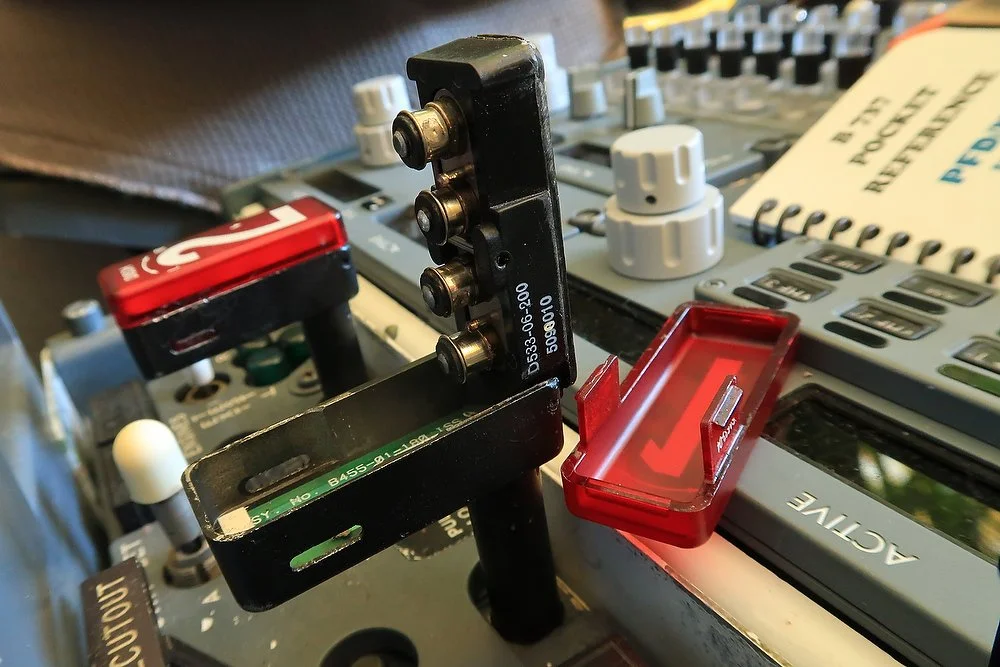
OEM circuit breaker switch.  The two connectors on the rear of the switch are very easy to connect to an interface card for push/pull functionality

The picture at left is of an OEM circuit breaker that has been removed from an OEM rudder crank unit.  The front plate of the control mechanism has several circuit breakers on the Captain and First Officer-side of the flight deck.

Although connection of the circuit breakers, to the original functionality that was assigned to the switch in the aircraft, is not necessary (unless wanted), there is no reason why the circuit breakers cannot be used for additional functionality outside of the simulator environment.   Many enthusiasts have specially made panels that reside in the center pedestal to address such a need. 

The circuit breakers are basically an on/off push/pull switch.  Each switch can be easily wired to a standard interface card, such as a Pokeys or Leo Bodnar card, and then configured in ProSim-AR to a particular function.  If using FSUIPC, the functionality of the switch can be assigned to any on/off function.

For example, using FSUPIC (buttons) it is possible to assign each circuit breaker to a simulator function such as: pause, sim acceleration, jetway extension, etc.  The list is almost endless.

In my simulator, I have the Captain-side circuit breaker switches configured to simulator pause and simulator time acceleration.  These commands are readily accessible within the FSUIPC framework.

The circuit breaker switches are aesthetics, therefore, configuring the switches to regularly used commands is a way to minimize keyboard usage, and de-clutter the flight deck.

This post is not exactly a thrilling entry. 

I am working on three articles at the moment and a detailed review of the SimWorld MCP and EFIS.  I also am slowly updating previous articles to take into account changes to technology and ideas.

I hope to have these ready for publishing in the not to distant future.   Best,   F2A

OEM Rudder Crank Unit

OEM rudder adjusting crank unit installed to Captain-side kick-stand.  The upper portion of the stick shaker can be seen in the foreground

The two OEM rudder adjusting crank units have been sitting in storage for considerable time, and I thought it was time to add them to the simulator and replace the very poorly made and ‘cheesy’ reproductions.

The unit is not a small item that can easily be attached to the lower kick stand of the Main Instrument Panel (MIP).  Each crank handle attaches to a 8-inch-long box, that houses the various circuitry, cabling and a dozen or so aircraft circuit breakers. 

Connection to the aircraft’s system is via two Canon plugs at the rear of the unit, while movement of the pedals forward or aft is facilitated by a long metal cable that connects to the rear of the handle.

The unit is not light-weight and weighs in at just over 1 kilogram.

The rudder crank handles do nothing other than add to the aesthetics of the simulator.  However, if wanted the various circuit breakers can be connected to an interface card (I will not be doing this).

rudder adjusting crank unit (prior to cleaning).  The long metal cable that connects to the rear of the handle (enabling the forward and aft adjustment of the pedals) has been removed.  The white crank handle hangs loose and needs to be attached to the box using plastic fasteners (empty holes).  The black circular pull on/off circuit breakers can be seen below the white handle

Installation to MIP

There are several methods that can be used to install the mechanism to the Main Instrument Panel (MIP).

If you are using an OEM MIP, then connection of the mechanism to the kick-stand is a matter of using the existing bolts and placement holes.  Fitment to a reproduction MIP is accomplished differently and depends upon how the MIP has been fabricated. 

I fabricated an aluminium cradle (saddle) that is attached by two nuts and bolts to the lower portion of the kick-stand (under the kick-stand out of sight).  The rudder adjusting crank unit slides into the cradle and a small screw holds the unit in the correct place.  A similar assembly could easily be made from wood or ABS plastic and painted Boeing grey.

The method of attachment differs to the way the unit is attached in the real aircraft  (classic or Next Generation).  I have abutted the upper section of the unit against the lower kick-stand.  In the real aircraft the mechanism is attached by a metal mounting bracket and screws.  As stated above, the type of MIP you are using and how it's fabricated indicates the best way to attach the unit (unless you want to bastardise the MIP).

737 Next Generation rudder adjusting crank (courtesy @ Karl)

Classic (500 series)

The rudder adjusting crank I have installed is from a classic 500 series airframe.  The difference between the classic and the Next Generation is minimal, however the method that the mechanism is attached to the lower kick-stand differs considerably. 

The classic is as shown in the above two images while the Next Generation, shown at left connects directly to the kick-stand via a a series of brackets that form part of the lower kick-stand structure. 

For those who are interested in a reproduction unit, AeroSim Solutions in Australia has a reasonable facsimile.

Read about an alternate use of the circuit breakers.

  • Updated 25 June 2020.

Conversion of OEM CDU - Part One

Completely gutted.  All unnecessary and unusable electronic components have been removed

One of the more advanced projects is the conversion of two OEM Control Display Units manufactured by Smiths.  The two CDUs came from a Boeing 500 series airframe that was retired from service in 2008 due to United Airlines decision to adopt the Airbus A-320.  A chronometer located on the rear of each unit, shows the hours of use - one unit has 5130 hours while the other has 1630 hours.

The Control Display Unit (CDU) is the interface that the flight crew use to access and manipulate the data from the Flight Management Computer (FMC); it's basically a screen and keyboard.  The FMC in turn is but one part of a complex system called the Flight Management System (FMS).  The FMS is capable of four dimensional area navigation.  It is the FMS that contains the navigational database.  Often the words CDU and FMC are used interchangeably.

In this article I will discuss some of differences between OEM and reproduction CDUs. In addition to explaining some of the advantages that using an OEM unit brings.  A second article will deal with the actual conversion of the units to operate with ProSim737.

Port side of CDU with casing removed to show the electronic boards that are secured by lever clips.  Like anything OEM, the unit is constructed from solid component

Construction and Workmanship

The construction and workmanship that has gone into producing anything OEM is quite astounding. 

The CDU is built like a battleship and no amount of use or abuse can damage the unit.  The unit is quite large and heavy.  I was surprised at the eight, a good 6 kilograms.  Most of the weight is made up by the thick glass display screen  CRT, and other components that reside behind the glass within the sturdy aluminium case. 

A myriad number of small screws hold together the 1 mm thick aluminium casing that protects the internal components.  In addition to screws, there are two special DZUS fasteners, that when unlatched, enable the side of the unit’s casing to be removed for maintenance. 

When the casing of the CDU is removed, the inside is jammed full of components, from the large CRT screen to gold-plated electronic boards that are clipped into one of three internal shelves.

One aspect in using anything OEM is the ease at which the item can be inserted into the flight deck.  DZUS attachments enable the unit, once it has been slid into the CDU bay, to be securely fastened.  I use a MIP manufactured by Flight Deck Solutions and the CDU slides seamlessly into the CDU bay.

Detail of the keyboard and DIM knob.  Interestingly the DIM knob dims the actual CRT screen and not the backlighting

Tactile Differences

Aside from external build quality, one of the main differences you immediately notice between an OEM and reproduction CDU, is the tactile feeling when depressing the keys on the keyboard.  The keys do not wobble in their sockets like reproduction keys, but are firm to press and emit a strong audible click. 

Furthermore, the backlighting is evenly spread across the rear of the keyboard panel with each key evenly illuminated.

Aesthetic Differences – 500 Series and Next Generation

As the CDU dates from 2008, the external appearance isn’t identical to the CDU used in the Next Generation airframe, however, it is very close.

Main Differences:

  • The dim knob is a slightly different shape.

  • The display screen is rounded at the corners od the screen (the NG is more straight-edged).

  • The absence of the horizontal white lines located on the inside edge of the display frame bezel.

  • The display screen is different (cathode ray tube (CRT) in contrast to liquid crystal display (LCD).

  • The illumination is powered by bulbs.

In terms of functionality, as this is controlled by software (ProSim737) the functionality is identical.  This also holds true for the font type and colour.

To an absolute purist, these differences may be important, and if so, you will have to contend with a reproduction CDU, or pay an exorbitant amount for a decommissioned NG unit. 

OEM CDU installed to MIP functioning with ProSim737

Conversion for use with ProSim737

There are many ways to convert a real aircraft part for use in Flight Simulator.  By far the most professional and seamless is the integration of the real part using the ARINC429 protocol language (as used in the real aircraft).  However, using ARINC429 is not a simple process for all applications.  Not too mention that you often must use high voltage AC power.

For the most part I’ve used Phidgets to convert real parts, however, in this conversion I wanted to try a different approach.  I’m going to liaise with an Australian company called Simulator Solutions.  This company specialises in converting high-end electronic components used in commercial flight simulators, and manufactures an interface board that should enable seamless conversion of the CDU.

Glossary

  • ARINC 429 –  A standard used to  address data communications between avionics components.  The most widely used  standard is an avionics data bus.  ARINC 429 enables a single transmitter to communicate data to up to 20 receivers over a single bus.

  • OEM - Original Equipment Manufacture (aka real aircraft part).

Troubleshooting Power Management Settings and Solving USB Disconnects

High-speed 5 volt powered USB hub.  This hub resides in the Throttle Interface Module (TIM).  Note ferrite choke

Remember when all that was required to run flight simulator was one display monitor, joystick and a keyboard – those days are long gone.   

Depending upon the level of system complexity, a flight simulator may require a dozen or more ports to connect peripheral items to a server or client computer (s).  Historically, connection of peripherals has been via USB.  

USB is an acronym for Universal Serial Bus and, generally speaking, if only a few peripherals are attached to a computer, there usually is not a problem with communication between the computer and the attached device.  However, as interface cards and peripherals become more complicated and numerous, there is a propensity for disconnects to occur more frequently.  A USB disconnect usually announces itself by the sound card playing the ‘ding-dong’ sound as the peripheral disconnects itself from the computer.

Guidelines (golden rules)

There are several ‘golden rules’ to remember when using USB.

(i)      Try and keep all USB cables as short as possible;

(ii)     Do not join USB cables together;

(iii)    Always use quality USB cables with quality connectors;

(iv)    Do not ‘kink’ the USB cable or wrap the cable so tightly that the wires are at a 90-degree angle;

(v)     Do not lie USB cables beside one another so they are touching, but maintain some space between them;

(vi)     Use a USB cable fitted with noise limiting nodes (NLN);

(vii)    Use a USB cable/port that is rated at the highest output (USB 3 or above);

(viii)   For multi USB connections use a quality powered USB hub; and,

(ix)     Try to maintain space between USB cables and power cables.

Ferrite choke on USB cable

Noise Limiting Node (NLN)

A noise limiting node (NLN), also known as a 'ferrite choke' is a small cylindrical node that sits at each end of a USB cable.  Briefly explained the nodes are made from a solid ball of ferrite which is magnetic and therefore quite heavy.

The purpose of the NLN is to stop electromagnetic interference (EMI) transferring from the peripheral to the computer.  EMI can be produced from any number of peripheral items and a USB cable running between the peripheral and the computer acts as an antenna, picking up and transmitting EMI current.  The current can, but not necessarily always, cause havoc with either the operation of the peripheral or the computer itself.  

Adding USB Ports

As the number of add-on peripherals increase, the number of available ports falls short and additional USB ports need to be added to the computer.  Additional ports can easily be added to a computer via a PCE card which enables (on average) an additional 4 USB ports to be added to your computer.  A PCI card is attached to your motherboard.

Power Requirements

One of the main reasons that USB disconnects occur, relates to the power that is available to the computer’s USB port.  Often the power requirements of the device will be greater than that provided to the USB port; this causes a disconnect.  Additionally, depending upon your computer, it is not uncommon for power to fluctuate between USB ports as the computer’s motherboard directs power to various processes.

Depending upon how your system is set-up, when several devices 'come on line' a minor spike can be generated.  Often, this spike can momentarily exceed the amperage rating of the USB port.  This can cause a disconnect to occur.

It’s important to understand that not all USB ports are made identical.  In general, the ports on the rear of the computer are part of the computer’s motherboard; these ports are rated as high power ports.  However, USB ports that are not part of the motherboard, and usually located on the front of the computer may not receive the same power rating.  

Often a supply company will provide a computer will a dozen or so USB ports, however, to save money will choose to use what is called a ‘front panel USB header’ which has a small piece of circuitry that acts as a hub.  In this case, the power to the front panel USB is reduced.  Furthermore, it is probable that these ports may not be USB 3 and if used for a high-demand peripheral will cause a disconnects to occur.

USB Hubs

Another strong recommendation is to use a high quality powered USB hub rather than connecting several USB cables directly to a computer.  A powered hub should be used rather than an unpowered hub as the former provides its own direct power source which is usually rated at a higher amperage than the computer’s USB port.  

The interface modules that form the core of my simulation system have one or two powered hubs installed to the module.  The interface cards are then connected by very short USB cables to the hub.  A high quality USB cable (with a NLN) then connects the interface module directly to the computer.

Recommended USB Hubs:

  • The USB hubs I use are Belkin powered 5 and 7 port USB hubs (Belkin F5U237-C). The C refers to the connector on he USB cable.

Screen grab of Windows 7 PMS.  Windows 10 is similar

Windows Power Management Settings (PMS)

Not all USB peripherals will be required at all times.  Often a device will not need to communicate with the computer until something is required – such as a change to a radio frequency, an input from the control column or a key press to the MCP or CDU.

Windows has a nasty habit of ‘putting to sleep’ a USB connection that is not being used.  It does this to save power.  It is very imperative that you ensure that all power saving modes are turned off with regard to USB.  

To do this open your control panel and search for device manager.  Scroll down until you find Universal Serial Bus.  Under this tab you will find all the USB ports that you have attached to your computer.  Open each in turn and check the power management settings and ensure they are turned off.

Troubleshooting USB Disconnects

It is paramount to try and discover which peripheral is causing the disconnect.  The easiest way to troubleshoot a disconnect issue is to remove ALL the USB cables from the computer, and then one by one re-connect the cables to the allocated port and test.  Make sure you switch your computer off and on as you add each of the cables in turn.  Hopefully, you will eventually discover which cable/device is causing the issue.  The problem device will generate ‘ding dong’ if a secure connection is not possible.

If USB disconnects continue, try swapping the cables between different USB ports on the computer.  The disconnect issue maybe caused by the USB port/cable combination you are using.  As mentioned, not all USB ports have the same amount of power/amps available to them. 

Try to place peripherals that require minimal power, such as a mouse or keyboard, on lower-powered USB ports, and place more energy-requiring peripherals on powered hubs; perhaps only a few devices on the one hub.  Doing this will ensure that the hub will always have enough power (amps) to power the devices attached (cancelling out possible spikes as discussed above).  

A potential problem can be located with the USB cable, cleanliness and tightness of USB connections (including any USB hub), and loose wiring (especially if connectors have been used to secure the wiring).

Clean the USB connections with a quality cleaner to ensure cleanliness and make sure the USB connectors are tight.  If the connectors need tightening, this can easily be done by pushing the small tabs inward on the female USB connection.

Final Call

Hopefully, if you apply the above-mentioned suggestions USB disconnects will cease.  However, you will eventually reach the limit of USB capability, and at this point the use of Ethernet should be investigated to augment, or to replace the reliance on USB.

This article is but a primer.  I am not an IT expert and welcome any comments.

Magnetic Declination and Navigation Database Update

There's little point using real aircraft parts (OEM) when the underlying databases in flight simulator, that provide aeronautical information, are out-of-date.  A commonly encountered problem is: 'Why is the approach course on the simulator different to that published in the approach chart'

If wanting to achieve a high degree of realism when flying flight simulator, then up-to-date aeronautical information is vital. 

Navigraph strives to maintain the accuracy of their charts and database sets by releasing quarterly updates.  However, up-to-date data is pointless if the baseline navigational data in FS9, FSX or P3D is dependent upon outdated datum points, incorrect ILS data and runway identifiers, and various misplaced VORs and NDBs.  

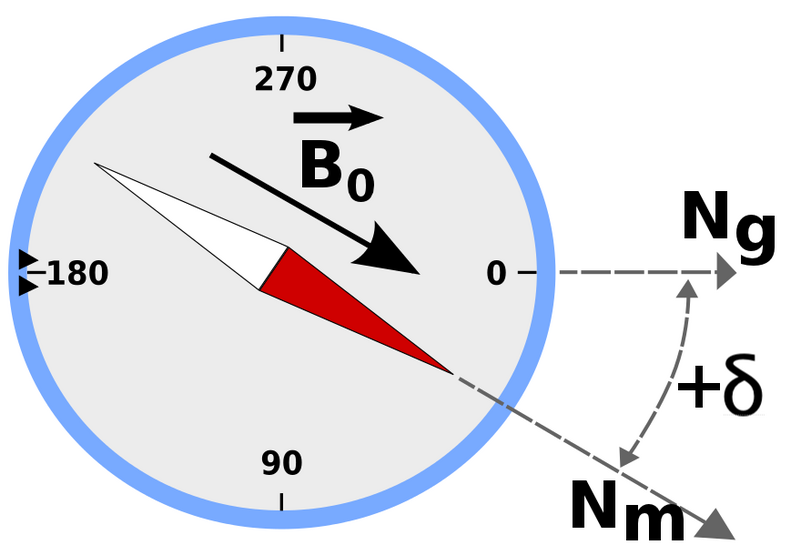
The baseline navigational data that flight simulator uses is based on information that was available in 1988, and matching this dataset with any up-to-date dataset can cause navigational problems.  Furthermore, magnetic declination changes each year and after several years there is a major discrepancy in the accuracy of the data.  This discrepancy reports as incorrect approach course directions.  

File Location and 2017 Datasets

Flight simulator stores the aeronautical information as a .bgl file usually located in the scenery/base/scenery folder in the flight simulator route directory.  The file name is MagDec.bgl.  Replacing this file with an up-to-date MagDec.bgl file is very straightforward.

In January 2013, I wrote a similar article concerning this subject as it related to FS9 and FSX. This article was subsequently updated to include MSFS-2020: Magnetic Declination - FS9, FSX, P3d and MSFS-2020.

Herve Sorrs (o-la-la)

No this is not a French dish served with snails (laughing). 

Herve Sors is well known for his work developing programs and add-ons that enhance the accuracy of the datasets that flight simulator relies upon.  His website is a treasure trove of information that explains the reasons why datasets should be maintained; in addition to being a platform from which to download programs.

Correcting Magnetic Variation

The Magnetic Variation Data (MVD) package provides an updated set of magnetic declination (Magdec) .bgl files as of January 2017.  Replacing the default magdec.bgl file with the one provided in this package will result in a much better fit between displayed headings and current documentation data (runway, ILS and procedure headings).

The MVD package can be downloaded from his website.

Installation

Installation of the new MAGVAR.BGL files (copied from text file in the MVD).

(i)    Close FS9 or FSX/P3D, since you will not be allowed to replace the file while the simulator is running.

(ii)    Locate the MAGDEC.BGL file which is in the \SCENERY\BASE\SCENERY\ sub folder of your FS9/FSX-P3D install directory.

(iii)    Keep a copy of the old file.  Rename it MAGDEC.BGL.BAK (do not use a bgl extension if the file is kept in the same directory).

(iv)    In the provided package, select the updated file you want to use, either FS9, FSX or P3D.

(v)    Copy the new MAGDEC.BGL file in the \SCENERY\BASE\SCENERY\ sub folder of your FS9/FSX-P3D install directory.

Flight Simulator will rebuild its index at first launch and the new magnetic variations will be applied.

Updating NavAids (FSX and P3D)

To update the various NavAids, Herve has created a program called World Navaids (installer version 8.00).  This program comes with a self-extracting installer that provides an an easy to use interface to select, amongst other things, which NavAids you wish to update or install to which geographic region.  The interface also cross references the data and provides a conflict report if there is a discrepancy between the default and add-on scenery datasets.  Prior to any update occurring, the program will make a back-up of the existing dataset.

Flight Simulator Platforms

Software is available to update all flight simulator platforms. Be careful to select the correct software package for your platform and follow the directions located in the Read Me file.

Final Call

Herve Sors has taken it upon himself to maintain the accuracy of the flight simulator database and to provide, free of charge, many small programs that enhance out simulation experience.  Thank you Herve for your contribution.  His website is Flight Simulator Aircraft Dynamics and Navdata.

RAAS Professional By FS2Crew - Review

KLAX airport diagram showing the maze that hundreds of aircraft each day must safely navigate.  Given the complexity of many airports, it's amazing there are not more runway incursions

Runway incursions are a leading cause of aviation fatalities and account for approximately $1 billion annually in aircraft damages. To help prevent such losses, close calls and collisions, the industry requested a safety system that would help maintain situational awareness during taxiing and preparing for takeoff and landing. 

Honeywell stepped in to fill the gap by developing an easy-to-install heads-up advisory system with aural alerts (call-outs) to increase flight crew situational awareness during ground and air operations relative to the runway. 

This system was then further improved upon, with the collaboration of Emirates.

I previously used a shareware version of RAAS developed by PlaneMan in South Korea.  This small FS add-on worked well, however, recently it stopped working on my system for an unknown reason.  I wrote a review on FsRAAS by Planeman in 2011.  Searching for a replacement, I came across RAAS Professional developed by FS2 Crew.  

What is RAAS

RAAS is an acronym for Runways Awareness And Advisory System (RAAS).  RAAS was developed by Honeywell Aerospace as a simple to install but effective software addition to the Honeywell Enhanced Ground Proximity Warning System (EGPWS).  Although the base-line RAAS is still in operation, Honeywell has improved the software by integrating additional aural advisory call-outs; in particular, relating to stabilised approaches.  SmartRunway and SmartLanding are the next generation of RAAS.

RAAS Professional replicates the complete aural Honeywell suite (RAAS, SmartRunway and SmartLanding), however, does not simulate the visual advisory displays.

Simulator Platforms

RAAS will operate on FS9, FSX and P3D V3 simulation platforms in 32 Bit.  A 64 Bit version of the program caters towards those using P3D V4. if using MSFS-2020 another version of RAAS is required called RAAS Professional by FS2Crew. The RAAS Professional software is more or less identical to the RAAS software but installation is slightly different.

Installation

Installation is via an installer and is straightforward.  The software installs a .ddl file which is loaded automatically when you begin a new simulation flight.  Once installed, a tab (RAAS Professional) will be added to the menu bar in flight simulator; this is where the user interface is opened to configure the program.  I did not experience any issues installing this program.

RAAS uses Simconnect to connect to flight simulator and does not require the use of FSUPIC.

Be aware that problems can occur when attempting to connect any add-on software that uses Simconnect (as opposed to FSUPIC).  If a problem occurs, the easiest way to rectify it is to re-install the Simconnect module of flight Simulator.

Initial Configuration (Managing the Runway Database)

The most important task to complete prior to configuring RAAS is to download a small standalone program called MakeRunways.  This software has been developed by Peter Dowson and is available gratis from his website.  The MakeRunways utility should be placed in your main flight simulator folder where the Scenery.cfg file is located.    

When run, MakeRunways interrogates the scenery folder and generates several database files that include, amongst other things, the runways found in flight simulator.  The generated files are automatically saved to your main flight simulator folder, for programs such as RAAS, to access and read. 

Whenever you install new scenery you must run the MakeRunways utility to ensure that the database is synchronized and up-to-date, otherwise RAAS will not work with the new add-on airport scenery.

Of importance, is that the 64 Bit version of RAAS requires an additional program to be installed.  The reason for this, is that vP3D V4 use a dedicated addons folder.  The Add-on organizer enables the add-on folder in P3D V4 to be interrogated by the MakeRunways program. 

Important Point:

  • If using RAAS Professional for MSFS-2020 MakeRunways is not required.

The Lorby Prepar 3D Addon Organizer can be downloaded gratis at the developer’s website (see downloads section). 

The installation of these programs is very straightforward and instructions are provided in the supporting documentation.

Advanced Configuration

RAAS, like its real world counterpart, is highly configurable from the User Interface (UI) accessed from the Add-Ons menu bar in flight simulator.

The following aural call-outs (advisory) are available.

  • Approaching Runway (On Ground): advisory provides the flight crew with an awareness of when a runway is being approached.

  • Approaching Runway (In Air): advisory provides the flight crew with an awareness of which runway the aircraft is lined-up with during approach.

  • On Runway: advisory provides the flight crew with an awareness of which runway the aircraft is lined up with on the ground.

  • Runway End: advisory is used to improve crew awareness of the runway end during low visibility operations.

  • Taxiway Take-off: advisory alerts pilots to excessive taxi speeds or an inadvertent takeoff on a taxiway.

  • Insufficient Runway Length (On Ground): provides the crew of an awareness of which runway the aircraft is lined-up with and if the runway length available is less than the defined minimum takeoff length.

  • Extended Holding on Runway: alerts the crew of an extended holding period on the runway.

  • Approaching Short Runway (In Air): offers an advisory of which runway the aircraft is lined-up with and if the runway length available is sufficient as defined in the Runways section.

  • Taxiway Landing: alerts the crew if they are not lined up with a runway at low altitudes.

  • Takeoff Flap Monitor: alerts the crew if the aircraft's flaps are not in the defined takeoff range.

  • Landing Distance Remaining: provides the flight crew with an awareness of the runway length remaining during roll-out.

  • Distance Remaining (Rejected Takeoff): provides the flight crew with an awareness of the runway length remaining during a rejected takeoff.

  • Landing Flap Monitor: advisory alerts the crew if the landing flaps are not set.

  • Excessive Approach Speed: is an alert if the aircraft speed become excessive compared to the final approach speed.

  • Excessive Approach Angle: is an alert if the aircraft's approach angle becomes too steep.

  • Altimeter Setting (Above Transition): alerts the crew if the altimeter is not set to standard after climbing above the transition altitude.

  • Altimeter Setting (Below Transition): provides the flight crew with an awareness of improper corrected altitude setting while below the transition altitude.

  • Long Landing: alerts the flight crew if the aircraft has not touched down within the defined Touchdown Zone Length.

  • Caution Enabled: adds the phrase ‘Caution’ to select aural calls.

Any of the aural call-outs can be turned on or off and several parameters are configurable from the UI.  Additionally, specific parameters can be changed depending upon aircraft type or airline policy, such as:

  • Aircraft type.

  • Runway takeoff and landing length, runway length and touchdown zone. Hold times (initial hold time and repeats).

  • Flaps configuration (takeoff, landing, upper and lower altitudes).

  • Approach speeds.

  • Transition altitudes.

  •  Extended hold times and frequency of the aural call-out.

If you fly different aircraft, any number of user profiles can be created.  The profiles are associated with the aircraft type selected in flight simulator.

rAAS Professional User Interface (UI)

Comparison - RAAS Professional to the  Honeywell System

RAAS Professional by Fs2Crew replicates the real Honeywell system surprisingly well.  The aural call-outs are identical and the female voice sounds very similar to the voice used by Honeywell - which provide either a female or male voice.  If you’re keen to compare RAAS to the Honeywell system I recommend you visit the Honeywell website, search RAAS and watch the videos.

Turning RAAS On and Off (RAAS Master Switch)

RAAS can be turned on and off ‘on the fly’ from the User Interface (UI), or by assigned a hot-key (key event API) in flight simulator.  By default the on/off function has been assigned to the water rudder (R) function (from within the flight simulator control panel).  It is also possible to assign this functionality to a switch/toggle.

Sound Cards and System Test

RAAS has been designed to be used within multiple speaker environments, and changing the speaker preference is made directly in the User Interface (UI).  With a little tinkering you should be able to dedicate the RAAS aural call-outs to a separate speaker while maintaining engine noise and Air Traffic Control to other speakers and a headset.  A master volume control tab enables the sound levels to be adjusted (if the speaker does not have volume control knob).

The UI has a System Test to determine correct configuration and connection (audio test) and an error log.  The error log can be used during troubleshooting (if necessary).  

Voice Sets and Memory Use

Currently RAAS only supports English in a female voice.  I believe that additional foreign language voice sets may be released in due course.

When RAAS is running, there is no discernible effect on the computer or flight simulator.

Support

A detailed and easy to read manual is supplied with the program.  The manual, in addition to providing detailed installation instructions, also has a very good troubleshooting section in the unlikely event that you have problems during the installation process.

RAAS supports a dedicated support forum and the developer replies to questions when asked.  

Program Shortfalls

At the moment it is not possible to install RAAS on a client computer and run the program across a network.  Although RAAS does not use a lot of computer resources, some users may wish to display the UI (when required) on a client screen in association with the Instructor Station.

Another shortfall is the inconsistent operation of the key event API (that enables you to connect a switch/toggle to the on/off function / RAAS Master Switch).  Sometimes it works and at other times it does not work correctly.

Alternatives

LAND 3 Simulations also markets RAAS that is suitable for msfs-2020 and msfs-2024. The operation is similar RAAS Professional, however, LAND 3 RAAS includes visual overlays that can be displayed on the PFD and ND.

Final Call

If you seek realism, RAAS is a worthwhile addition to flight simulator.   When configured to an appropriate aircraft, the aural call-outs are timely and helpful to situational awareness.  Two features I particularly like are the ability of RAAS to remind you to set the appropriate flaps detente prior to takeoff, and the aural call-out that is generated which identifies the runway you are aligned with during final approach.

I must admit there was one occurrence when I was conducting a VOR approach to a parallel runway in limited visibility.  The aural call-out stated I was aligned to runway 24 Left when I was supposed to landing on runway 24 Right!  But isn’t this the reason RAAS was designed – to stop incursions and provide situation awareness to flight crews.

References and Affiliation

This article was written with reference material obtained from Honeywell Aerospace.  

Please note I have no affiliation with FS2Crew.  I have not been provided with ‘free’ software, nor did I receive a discount in return for a favourable review.  The comments and recommendations I have made are my own.  Further information on RAAS Professional can be obtained directly from the FS2Crew website.

Flight Simulator, in this article, refers to FSX/FS10.  I use the B737 avionics suite developed by ProSim-AR.

BELOW:  Honeywell promotional video (courtesy & with permission Honeywell).


BELOW:  RAAS Professional promotional video (courtesy FS2Crew).


TaxiSigns HD - Review

Example of the high definition sign showing night lighting which creates a pleasing  illumination in front of sign.  This feature is missing in the default textures

A small add-on program which may interest some is TaxiSigns HD.  Essentially this software replaces all the default taxiway signs in flight simulator (FS) with a selection of several higher resolution 3D images with enhanced lighting effects.  For those that spend considerable time taxiing the aircraft this program is sure to please.

Installation and Features

Installation is via a wizard installer which will ask where you wish to install the program and also ask which directory flight simulator is installed. 

Once installed, a sub menu (TaxiSigns HD) will be placed within the flight simulator Add-Ons menu.

TaxiSigns HD works be adding its own scenery area, called TaxiSigns HD layer, to the FS scenery library.  The default textures are not overwritten or deleted and outside of its own scenery area, the program does not modify any flight simulator files.  To uninstall the product, and restore the default signs, use the Windows Control Panel to uninstall the program.  

The program has a user interface screen accessible from the FS Add-Ons menu.  The interface enables the user to easily alter the 3D model, daytime and night textures, and whether the signs illuminate the ground at night.   

One of the main advantages, other than appearance (the signs actually look like signs), is the night lighting effects.  Each sign can be front lit to allow the ground in front of the sign to be illuminated.  

The following outlines the features of the program:

  •  3D taxiway signs instead of default rectangles 

  • Crystal clear text and FAA mandated font (high resolution textures) 

  • Choice of several 3D taxiway sign textures and shading effects (day and night) 

  •  Illumination of the ground in front of each taxiway sign 
 

The user interface in which various options can be selected.  Note the posts that hold the sign

Evaluation of TaxiSigns HD

If you spend considerable time taxiing or take photographs and video within flight simulator then this program is well worthwhile. 

The textures are very sharp and the signs are much easier to read than the default textures.  They are also much more attractive to look at in comparison to the default signage.

A problem observed in flight simulator (FSX) is the slight blurring of the signs as the aircraft taxis past the sign.  The replacement textures remain sharp and do not blur as do the default signs.  Furthermore, I could not discern any appreciable drop in frame rates.

Compatibility an Support

TaxiSigns HD is fully compatible with both DirectX 9 and DirectX 10 modes of FSX, and also with FS9 and Prepar3D (versions 1.0-5.0).  

A succinct manual is provided with the program and although the program is very simplistic, a support forum is available.

  • The program can be downloaded from the developers website and tested for a period of 10 minutes: TaxiSigns. HD

Note I do not have any affiliation with the software developer.

White Caps for Locking Toggle Switches on Overhead

Lower electrical panel showing reproduction latex-style cap (ELEC 2) and OEM Honeywell Switch Accessory 15PA90-6W (ELEC 1). For those with keen eyes - yes that is a voice recorder in the lower panel - more to follow in later posts.  Of interest are the two different white caps (read main text)

It has taken a very long time to collect the assortment of OEM needed parts to complete the forward and aft overhead panels.  Finally the build is now in progress and it’s hoped completion will be towards the end of 2016.

OEM Overhead Panel Switches (2 main types)

There are two main types of switches used on the forward and aft overhead panel.  The push/throw switches (Honeywell switches pictured above) and the normal toggle-type switches.  The Honeywell switches use a screw on white cap while the standard toggle switches use use a condom style white cap.

Honeywell Switch Accessory 15PA90-6W showing internal screw thread.  The thread screws onto the stem of the toggle switch

Anatomy of the OEM White Cap

The Honeywell switch caps are not a slip-on latex cover but a solidly-produced head with an internal aluminium thread.  The head is designed to be screwed directly to the shaft of the toggle switches.  Firmly attached to this head is the white latex cap. This is the cap that is used on the push/throw switches. 

Reproductions

Most of the reproduction white caps for the push / throw switches are either push-on style condoms, or a white-capped head attached to a slender hollow shaft.  The shaft then slides over the existing switch stem. 

The reproduction slip-on caps currently available on the market bear little resemblance to those made by Honeywell.

Important Point:

  • Bear in mind that the push / throw switches are used regularly and are usually forcefully manipulated; many reproductions do not stand up to continued abuse.

Choice - so many options

I had purchased several dozen OEM Honeywell toggle switches, however, for whatever reason the white caps on the toggles were either missing or damaged.  Honeywell OEM switches are not inexpensive, so I was going to use reproduction white push-on caps (aka white condoms), but the caps failed to  fit snugly to the OEM switches, and their appearance was slightly different to the OEM version - the ends of the caps looked rather bulbous.

My next choice was to use latex caps that are used in automotive industry.  Once again, the appearance was slightly different and the automotive caps sported a small nipple at the end of each cap where they had been connected to the plastic retaining spur; I found the appearance of the nipple disconcerting.

Short of viable options, I purchased the OEM white caps from Honeywell which is the company that supplies Boeing.  If you carefully look at the above picture of the lower electrical panel (click image to enlarge picture), you will observe the nearest toggle switch has been fitted with an automotive style cap; the nipple and joining line is clearly visible.  The second toggle switch is fitted with the Honeywell white cap.

Installing the White Toggle Cap

To mount the white cap to a Honeywell switch you must first gently heat the switch stem.  The heat will loosen the head of the toggle.  It then is an easy matter to screw off the head and replace it with the OEM head.  To heat the stem use either a hair dryer or paint dry gun (used to dry paint).

Measurements

Not everyone wants to utilise OEM parts.  As such I have provided the measurements of the switch head (courtesy of Honeywell) for those who wish to try their hand at making their own white caps.

If you are searching for the other style of white caps used on the standard toggle switches, the part number for the correct condom white cap is 69-44578-2.

Reproduction Condoms - suppliers

For those not wishing to use OEM, there are several companies that manufacture reproduction white toggle caps.  For example, PC Flights and GLB United Kingdom.

Glossary

  • Honeywell – Avionics conglomerate that is heavily involved in the defense and aviation industries.

  • OEM – Original Equipment Manufacture.

Assembly of Forward Overhead Panel

Forward overhead using OEM parts

Construction of the simulator began in 2011.  It is now 2016 and I am perplexed to why the build has taken so long to complete.   Of course, opting to try and use OEM (Original Equipment Manufacture) parts whenever possible has added significant time to the project - especially the procurement of parts.

Most of the parts that make up the forward overhead have now been obtained and assembly of the components is well advanced.   Very soon the wiring from the panels to the Phidgets cards will begin.  This will be followed by several hours of testing to check correct functionality and to ensure perfect harmony between components and systems. 

A basic frame has been constructed to enable the overhead to be easily positioned to enable the wiring to be done with a little more ease.  After the forward overhead is completed, work on the aft overhead will commence.  Rome, it seems, was not built in a day.

Certainly, completion of the forward overhead will be the major project over the next few months.

FS-FlightControl Instructor Operating Station (IOS) - Review

Opening screen for FS-FlightControl IOSon the server computer.  IOS can be easily configured to automatically open after Windows start-up

Virtual flyers can be grouped into three broad groups.  Those that are satisfied using a desktop simulator, those that gravitate toward a professional simulator, and those that strive to replicate, as close as possible, a Level D simulation.  No matter which group you belong, there is a requirement for a feature-rich, reliable, and stable Instructor Operator Station (IOS).

This post will introduce the Instructor Station FS-FlightControl, developed by AB-Tools GmbH, a company located in Germany.  The review is not meant to be comprehensive as such a document would be as long as the product’s operating manual.  Rather, we will examine some of the product’s features prior to making an assessment of the software’s reliability and ease of use.

What is IOS - Do I need It

IOS is an acronym for Instructor Operating Station.  At its simplest, it's the menu system in Flight Simulator that enables you to choose from several parameters to create a pre-programmed flight scenario. 

A dedicated instructor station is far more than a few options to alter the time, place, and scenario in the simulator.  A good instructor station should enable you to set basic flight scenarios, in addition to being able to monitor set tasks and parameters.  The software should provide clear and readable displays, be set out logically, be easy to operate, and also be able to initiate system failures.  Furthermore, the software must be stable, reliable and consistent in its output.

There are several Instructor Operating Stations available on the market and most high-level avionics suites come with a ready-made IOS as part of their software.  Therefore, the question must be asked - why is there a need to purchase a stand-alone IOS.  

Put bluntly, many generic instructor stations have been added at the back-end of an avionics suite.  These instructor stations can lack functionality, features, and ease of use.  Furthermore, their layout is often not optimal or configurable.

Screen shot showing the POSITION page display of IOS.  Note the easy to navigate menu at the bottom area of the screen (twelve modules).  This menu system is available on allIOS pages and enables quick and easy navigation between modules

IOS Features - FS-FlightControl

The features and functionality that are supported by IOS are extensive, however, bear in mind that the instructor station has been designed to operate across different simulator platforms and avionics suites; not every feature may operate with the intended avionics suite.  For example, flight plans can be generated and sent to FSX in the standard .pln format, but they cannot be send directly to ProSim-AR in the correct format (as at the time of writing).

I have purposely not duplicated what has already been written on the FS-FlightControl website.  The website provides a well detailed description of the features and functionality of the software and includes numerous screen shots.

Broadly speaking, IOS has been developed around 12 main modules.  Like-minded themes have been grouped into whatever module is specific to the subject.  If the information exceeds what can be displayed on one page, then one or more sub-pages (sub-tabs) are provided.  There is a gamut of features

Main Modules

Position:   Aircraft re-position, runway preference, aircraft scenario, approach presets, airport selection and re-position options.

Map:   Street map, satellite map and height map.   Navaids, AI aircraft, weather, aircraft location, compass and route/flight plan overlay.

Flight Planing: Route and flight plan generation with load tool.  Importing and exporting of data with flight plan generated onto roving MAP.

Conditions:   Environmental conditions relating to weather (artificial and real-time), visibility (CAT presets), winds, clouds, precipitation, altitude levels, barometric pressure, presets, time and season, accelerated time, and user-generated conditions.  This section is very detailed and is examined in several sub-tabs.  Many of the presets are as easy as clicking a button on the screen.  For example, ILS visibility conditions can be generated by clicking one of the CAT buttons (CAT I, II, III, IIIa/b/c).

Push back:   Graphical interface enabling push back of aircraft at any angle and distance.

Fuel/Load:   Fuel volume, passenger, crew and cargo weights, aircraft weights (ZFW), center of gravity (%CG) and load tool.

View/Slew:   Alters external camera views of aircraft and enables the slewing of aircraft.

Failures:   Aircraft system failure conditions that can be triggered immediately, at pre-defined times, or at random.

Statistics:   Approach statistics - Graphical representation of aircraft in relation to vertical and lateral position, aircraft position, ground altitude, vertical speed, pitch, and bank angle.  Results can be exported to Google Earth for further analysis.

Network:   Module to control all computers and software within your simulation network (server and any number of client computers).

Aircraft:   Selectable list of aircraft options re: altitude, speed, direction, radios, TCAS alert status, engine parameter outputs, throttle outputs, autopilot, light and switches, etc. 

Settings:   Customization of all aircraft, map, and program parameters: colours, fonts, map layouts, etc.  Additionally, other variables can be customised such as CAT visibilities and decision heights.

Favoured Features

I’ll be honest, the more I use IOS the more I enjoy my simulation experience.  At the very least, IOS provides a reliable way to store various approach scenarios to numerous airports at different times, seasons and weather conditions.   Granted, that this can be done from the flight simulator menu, however, it cannot be done as cleanly nor as quickly as it can from the IOS module.

Although I do not use all the features available in the program, there are several that I continually use.  It is these I will discuss in further detail.

POSITION:  Position refers to the position of the aircraft whether it be on the ground or in the air.  IOS enables the user to select from several ground positions such as the gate, runway, terminal, base approach, straight-in approach, etc. A click of the mouse will position your aircraft to any of several preset locations. 

I find this to be a very good time saver, especially if you do not want to simulate a long taxi or some other part of the flight but wish to concentrate only on one aspect – such as the approach phase.  In addition to various presets, this page also allows customized approaches to be generated and saved.

Another aspect of this page deserves mention; the ability to select a chosen aircraft livery, parameter list (fuel state, trim, radio frequencies, etc) and save this to custom-named 'slot'.  This is another time-saving feature and easy method to choose a pre-saved livery of an aircraft type.

STATISTICS:   For those who fly by the numbers and want to improve their approach techniques, the statistics section provides a graphical interface that records the vertical and lateral deviation of the approach.  It also records airspeed, vertical speed and several other characteristics.

CONDITIONS:   Conditions broadly refers to environmental and weather conditions at the airport selected, or at various pre-selected waypoints or weather stations.  Changing weather conditions, visibility, season and time is as easy as clicking a button.

This page is exceptionally feature-rich and the instructor station can generate live weather, weather from an imported METAR string or any number of pre-saved weather themes.  For those interested in setting up specific weather events, for flight training, it is very easy to do so.  

Screenshot showing MAP display page.  Many advanced features that can be displayed as a map overlay.  The tabs along the sides of the page can be clicked to turn features on or off

MAP:  The map is a hidden gem that enables you to overlay a wealth of information onto a street or satellite map of the area of operation. 

For example, the user aircraft and AI aircraft are graphically represented along with all navigation aids which includes VORS, NDBs, high and low jetways, ILS feathers and waypoints.  Wind direction and current barometric pressure can also be displayed along with the current SID, STAR or route.  Whilst on the ground all aprons, runways and taxiways are shown.  Navigating to an assigned runway could not be easier as the user aircraft icon shows the position of the aircraft at all times. 

As with all windows, the MAP can be displayed as a separate screen on another monitor.  Therefore, it is possible to have IOS open on two monitors with one monitor showing the MAP view while the other monitor displays a different view.

An added advantage is the ability to position your aircraft anywhere on the map and create a position fix along with altitude, direction, pitch, bank, airspeed and radio frequencies.  This information can be saved for future activation from the POSITION page.  This enables you to quickly and easily set-up an approach and save this approach for future use.

For those that fly on-line, VATSIM, IVAO and PilotEdge are supported.

NETWORK: IOS enables the user to program the software to control what programs open or close on any computer that is connected to the network.

For example, I use a batch file  to open and close flight simulator, ProSim-AR and other FS related programs (weather, flight analysis, etc).  IOS when turned on from the client will automatically execute the opening of the batch file on the server computer.  Likewise, when triggered, IOS will engage the batch file I use to close flight simulator and other ancillary programs.  Additionally, a time delay can be configured to cause a delay between the closure of programs and the turning off of the server computer.  

Screenshot showing the PUSH BACK display page

Installation of IOS - Server and Client

The software package is downloaded from the developer’s website and consists of a self-extracting .exe file. 

As IOS has networking capability, it's not necessary to install IOS to the computer that has flight simulator installed; it will operate on a client computer.  Additionally, a wizard is used to direct you through the installation process and configuration.  Networking to a client is done via SimConnect.  FSUPIC and WideFS are not required.

Although networking is achieved through the use of SimConnect which can, at times, be problematic, I did not experience any issues.

Configuration

Configuring the program to suit your requirements is done from the SETTINGS page.  Variables can be altered for each aircraft, and aircraft profiles can easily be created that save particular parameters or conditions.  Likewise, the software can be altered to enable a particular font style and colour to be displayed along with a zoom value and size.  The process is straightforward.

Pretty much everything in IOS is able to be configured to your liking.

One aspect of IOS I found to be very handy, was that when you close the instructor station it will keep the last known settings.  This means the parameters for the next flight session (if not altered) will be identical to the last.

Ease of Use

Screenshot showing the FAILURES display page.  Note the open conditions call-out box.  There are several sub-pages (sub-tabs) that deal with failures.  Failures are an important asset to enthusiasts striving for realism

The IOS program is set-out intuitively and the various pages (modules) follow a logical sequence with like-minded themes bundled together on the same page.  The twelve page main menu located at the bottom of each page is promulgated across all pages and enables quick access to various features. 

Unlike other instructor stations, all information relating to a specific theme is located on the one main page (for example, failures or position page); it is not necessary to navigate between several pages trying to find the information.  Furthermore, the screen display can resized to either fill your display or only part fill it.

Another advantage is the implementation of large-style buttons that enable quick and accurate identification of a module.  Everything is easy to find and access.

Program Administration

Program administration encapsulates the opening and closing of programs from one or multiple computers. 

Without an instructor station or the use of batch files, several programs must be opened on the client and server computer to begin a flight.  This takes time and the process can be unwieldy.

If the instructor station is configured correctly, it is a two-step process to begin a flight.  First the computers must be turned on.  Second, from the client the FS-ControlControl IOS icon is depressed.  Once IOS opens on the client computer it will communicate with the server computer (via SimConnect) and open any number of programs on the server (assuming they have been configured correctly in the IOS NETWORK page).  

Once Flight Simulator opens and you are on the flight line it’s only a matter of using the instructor station to alter any variables particular to the flight (airport, aircraft position, weather, fuel, weight, etc).  All changes are automatically promulgated across the network to Flight Simulator.

The important aspect to note, is that other than turning on the server and client computers, everything is done from the one screen on the client computer using the one mouse/keyboard.  Likewise, when closing the simulator session everything can be done, including turning off the server computer, from the instructor station.

Cross-Platform Operations

The IOS operates with Microsoft Flight Simulator X (FSX/FS10) including Steam Edition, and with Lockheed Martin Prepar3D® 1.x, 2.x and 3.x. in a Windows environment.  A separate APP is available for Android and Apple (iOS).  The software works traditionally using the keyboard and mouse in addition to being optimized for touch screens.  IOS can be run either on the computer that has Flight Simulator installed or from a networked client computer.

Stability and Speed

The last thing anyone wants is a crash to desktop caused by a bug-ridden piece of software that exhibits stability issues, poor performance, and does not operate consistently.  

The stability of the instructor station is excellent.  In my simulator set-up the IOS is installed on a client computer and networked to Flight Simulator located on a server computer.  The software loads quickly and interacts with the simulator seamlessly.  

The speed at which software interacts with Flight Simulator is important and it’s pleasing to note that IOS commands do not exhibit any significant time lag between the client and server computers.  There is no time lag when switching between any of the interface screens on the instructor station.  Surprisingly, this includes the MAP mode.  Often a high definition map with several overlays cannot generate its resultant map within an acceptable time. 

This said, internet connection speed may cause users to experience different speeds.

The time taken to open the instructor station from the icon on the client computer is approximately 10-15 seconds.

Screenshot showing the CONDITIONS display page.  This page has several sub-pages that deal with conditions.  For example, real weather, presets, season, ILS visibility and accelerated time.  Note the display box in the lower left side that shows the frame rates

Updates to IOS (Annual Fee)

The software developer is very proactive and software updates with improvements, minor fixes and new features are regularly provided free of charge.  

However, the update period is only for one year following purchase.  After this period has lapsed, an annual fee will need to be paid to enable future updates to be used.  The annual fee is only for updates, the original software will still function.

Do you need to update ?  If you are happy with what you have, then no.  However, if you are seeking specific functionality then an update may have this functionality.  A list showing the updates can be read in the INFO section of the software. 

The developer realizes that each person’s requirements for an instructor station is different, and as such, entertains ideas and suggestions for additional features or improvements from end-users.

Support

FS-FlightControl does not have a dedicated forum, however the developer replies promptly to all e-mails sent via the software help page.  

A benefit of sending e-mail directly from the software is that the log files from your system are automatically attached to any outgoing message.  This enables the developer to easily understand the issue, saves time in asking for further information, and leads to a faster resolution.

Dedicated Manual

A manual for any in-depth software is an absolute necessity.  It is pleasing to note that the developer has written a manual and does not rely on a forum to provide answers to common questions.

The manual, which reflects the latest software build, is accessed from the FS-FlightControl IOS website.  If necessary a .pdf is available on request.  

Additionally, the manual can also be accessed directly from the software.  Each page has several small question marks (?) that when clicked navigate the user to the appropriate help section in the manual.  If you find the questions marks unsightly, then they can be turned off from the SETTINGS page.

Software Trial

This review has only examined several of the features that the instructor station is capable of.  To enable a comprehensive examination of the software, IOS can be installed with full functionality (including any prospective updates) for a period of 14 days.  After this time has elapsed, the software will need to be purchased.

Final Call

Considering the scope of what an instructor station does and how it can be used to enhance the effectiveness of a simulator, there is little doubt that a good IOS is essential.    

I've spent considerable time using the FS-FlightControl IOS and although this review touches on but a few of the features of IOS, I believe this software to be superior to other contemporary products.   It certainly has enhanced how I use the simulator leading to a more enjoyable experience.

The IOS software and further information can be downloaded at FS-FlightControl IOS.

  • Please note I have no affiliation with FS-FlightControl.  I have not been provided with ‘free’ software, nor did I receive a discount in return for a favourable review.  The comments and recommendations I have made are my own.

  • Flight Simulator, in this article, refers to the use FSX/FS10.  I use the B737 avionics suite developed by ProSim-AR.

Update

Since this review there have been several updated releases that have implemented a number of new ideas and rectified shortcomings.

ProSim-AR users will be pleased that an update includes the ability to import and export flight plans to the ProSim-AR database as an .xml file (10 character file name).  The update also enables synchronisation with the FMS, and display of the flight plan on the IOS map.

VNAV 'Gotchas' - Avoiding Unwanted Level-Offs

One aspect of using VNAV during published instrument departures, arrivals, and approaches is that it can cause unnecessary level-offs. 

These level-offs can cause engines to spool needlessly, increase fuel cost and stagger a Continuous Descent Final Approach (CDFA) such as when executing  an RNAV approach. 

It is not only domestic airliners that must meet altitude constraints; military aircraft also  must meet the same requirements when landing at a non-military airport (click to enlarge).  Image is copyright xairforces.net.  For those interested in flying the Wedgetail, there is a model available for ProSim-AR users on their forum page.

To avoid this, and ensure that minimum altitude constraints are met, two techniques can be used.

METHOD 1Constraints Are Not Closely Spaced.

This technique is normally used when waypoints with altitude constraints are not closely spaced (in other words, there is a moderate distance between altitude constraints).

During climbs, the maximum or hard altitude constraints should be set in the Mode Control Panel (MCP).

Minimum crossing altitudes need not be set in the MCP as the FMC message function will alert the crew if these constraints cannot be satisfied.

During descent, the MCP altitude is set to the next constraint or clearance altitude, whichever will be reached first.

Immediately prior to reaching the constraint, when compliance with the constraint is assured, and when cleared to the next constraint, the MCP altitude is reset to the next constraint/altitude level.

METHOD 2: Constraints Are Closely Spaced.

Where constraints are closely spaced to the extent that crew workload is adversely affected, and unwanted level-offs maybe a concern, the following is approved:

For departures, set the highest of the closely-spaced constraints.

For arrivals, initially set the lowest of the closely-spaced altitude constraints or the Final Approach Fix (FAF) altitude, whichever is higher.

IMPORTANT: When using either technique, the FMS generated path should be checked against each altitude constraint displayed in the CDU to ensure that the path complies with all constraints.  Furthermore, the selection of a pitch mode other than VNAV PTH or VNAV SPD should be avoided, as this will result in the potential violation of altitude constraints.

To enlarge more on VNAV is beyond the scope of this post.  A future post will address this topic in more detail.

Crew Controls Automation - Not Vice Versa

However, the system is only as good as the knowledge of the person pushing the buttons.  It is very important that a flight crew control the automation rather than the automation control the flight crew. 

If VNAV begins to do something that is unplanned or unexpected, do not spend precious time ‘thinking about the reasons why’ – disconnect VNAV and use a more traditional method or hand floy the aircraft.  Then, determine why VNAV did what it did.  The most common comment heard in today's modern cockpits is ‘What is it doing now…

Final Call

VNAV is an easy concept to understand, but it can be confusing due to innumerable variables associated with vertical navigation.  VNAV is probably one of the more complicated systems that virtual and real pilots alike have to understand.  When using VNAV it is paramount to maintain vigilance on what it is doing at any one time, especially during descent and final approach.     Furthermore, it is good airmanship to always have a redundancy plan in place – a ‘what if’ should VNAV fail to do what was anticipated. 

The below article also discuss VNAV:

An interesting article concerning VNAV:

Acronyms and Glossary

  • CDU - Control Display Unit (aka FMC)

  • FAF – Final Approach Fix

  • FMC - Flight Management Computer

  • FMS - Flight Management System.  Supply of data to the FMC and CDU

  • Gotcha - An annoying or unfavorable feature of a product or item that has not been fully disclosed or is not obvious.

  • LNAV – Lateral Navigation

  • MCP – Mode Control Panel

  • NPA - Non Precision Approach

  • VNAV – Vertical Navigation

  • VNAV PTH – Vertical Navigation Path

  • VNAV SPD – Vertical Navigation Speed